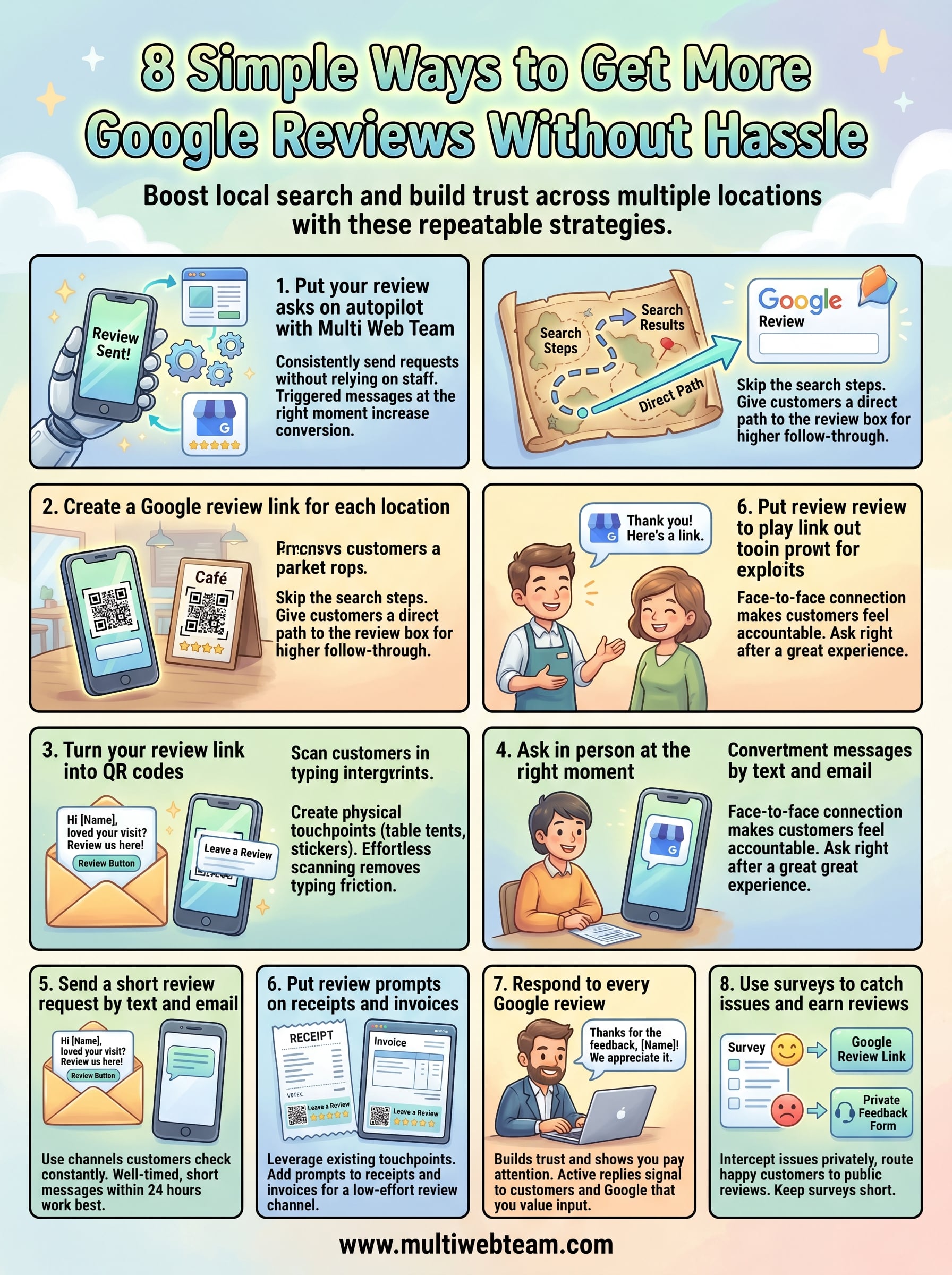
8 Simple Ways To Get More Google Reviews Without Hassle
A single Google review can tip the scales for someone choosing between your location and a competitor down the street. Multiply that across five, ten, or fifty locations, and the stakes get serious fast. If you've been wondering how to get more Google reviews , you're asking the right question, because review volume and quality directly influence whether your business shows up in local search results at all.
Here's the thing most multi-location businesses run into: you know reviews matter, but actually getting customers to leave them feels like pulling teeth. Your team is busy running operations, not chasing down feedback. And when you're managing several locations, the inconsistency between them can be glaring, one location has 200 reviews , another has 12.
At Multi Web Team, we build and manage websites for multi-location businesses and franchises, and we see this gap constantly. A well-optimized website paired with a thin review profile leaves money on the table . Reviews feed your local SEO, build trust before a customer ever walks through the door, and give each location its own credibility online.
This article breaks down eight practical ways to generate more Google reviews across your locations, without adding another full-time job to your plate. No gimmicks, no gray-area tactics. Just repeatable strategies that work whether you have three locations or three hundred.
1. Put your review asks on autopilot with Multi Web Team
The biggest reason most businesses don't collect enough reviews isn't a bad customer experience. It's inconsistent follow-through. Your team forgets to ask, timing is off, or a clear process simply doesn't exist. Multi Web Team builds review automation directly into your website management service, so asking for reviews becomes something that happens consistently without relying on your staff to remember every single time .
Why it works
Manual review requests depend on human behavior, which means they're inconsistent by nature. Automation removes that variable entirely. When a triggered request goes out at the right moment , your customer is still thinking about their experience and far more likely to act on it. Research consistently shows that customers who receive a timely, direct ask are significantly more likely to leave a review than those who receive no follow-up at all.
The closer your review request lands to the actual customer experience, the higher your conversion rate will be.
How to set it up
Multi Web Team integrates review request tools directly into your website and existing customer touchpoints . You share a few details about how your business captures customer contact information, whether through a booking form, order confirmation, or service completion workflow, and the system handles the rest. Each customer receives a personalized, well-timed message with a direct link to your Google Business Profile review page, removing every possible point of friction.
How to scale it to multiple locations
This is where automation earns its real value for multi-location businesses. Instead of building separate review campaigns manually for each location , Multi Web Team sets up location-specific review links and routes each customer request to the correct Google Business Profile automatically. Every location gets its own steady flow of review asks without you starting separate processes from scratch each time you add a new site.
Mistakes to avoid
Two common mistakes can undermine your automation results. First, sending requests too late cuts response rates sharply, so aim to reach customers within 24 to 48 hours of their interaction. Second, skipping personalization entirely kills engagement. A generic, robotic-sounding message gets ignored. Make sure each automated request includes the customer's name and a reference to their specific location to keep the ask feeling genuine.
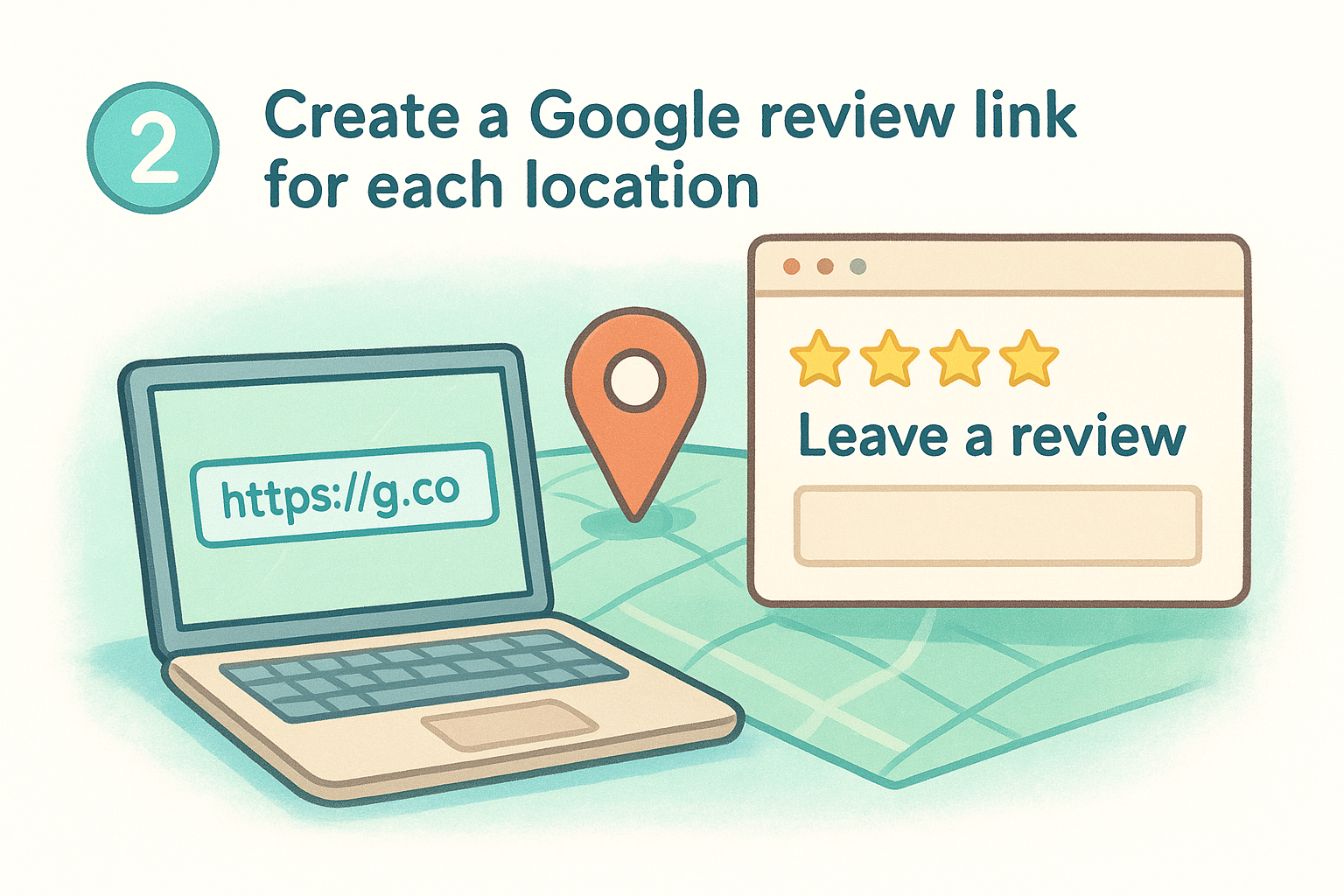
2. Create a Google review link for each location
Before you can ask customers to leave a review, you need to give them a direct path to do it . A Google review link sends customers straight to the review box on your Google Business Profile , skipping the search steps that cause most people to give up before they ever leave feedback.
Why it works
Every extra step between "I'll leave a review" and actually doing it costs you conversions. A direct review link removes the friction of searching for your business, finding the right location, and navigating to the reviews tab. Customers land exactly where they need to be, and that ease of access meaningfully increases follow-through.
The fewer steps between intent and action, the more reviews you collect.
How to set it up
Go to your Google Business Profile, select the location, and find the "Share review form" option in your profile dashboard. Copy that link and shorten it if you plan to display it publicly. You now have a unique review URL ready to drop into emails, texts, or your website.
How to scale it to multiple locations
Each location on your Google Business Profile generates its own separate review link. Pull each link, label it clearly by location name, and store them in a shared document your team can access. This gives you a ready-made library so every location gets accurate, location-specific review requests without any guesswork.
Mistakes to avoid
The most common mistake is sending customers a generic Google search link instead of the direct review URL. Customers who land on a search results page rarely complete the process. Always verify each link by testing it yourself before you send it out to real customers.
3. Turn your review link into QR codes
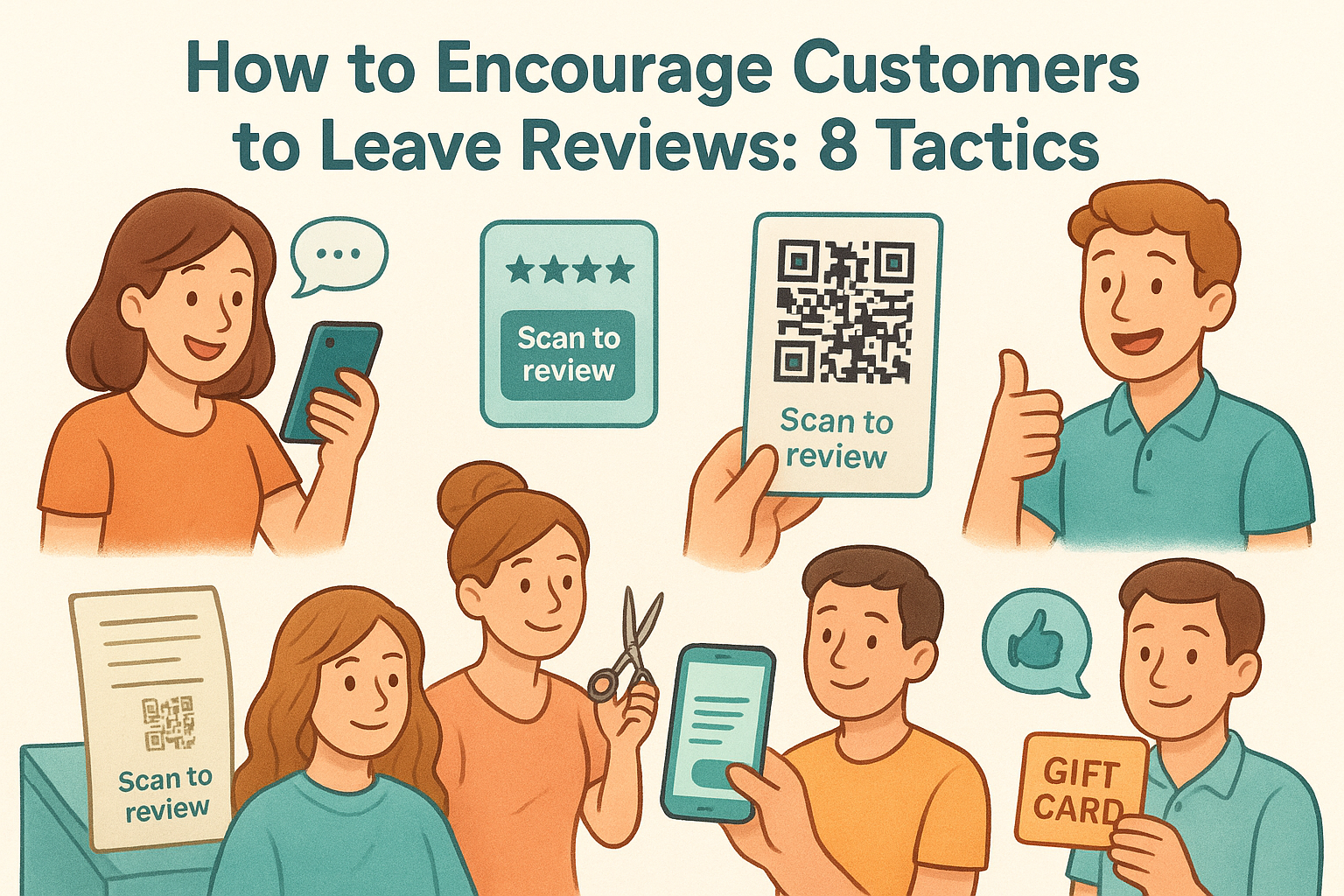
Once you have a direct review link for each location, a QR code turns that link into a physical touchpoint. Customers can scan it with their phone without typing a single character , which makes the whole process feel nearly effortless.
Why it works
A QR code puts your review request exactly where customers are already paying attention , whether that's at the counter, on a table, or on a receipt. Physical placements reach customers in the moment, which is one of the most reliable approaches for anyone figuring out how to get more Google reviews across busy, high-traffic locations.
A well-placed QR code works around the clock without any staff involvement.
How to set it up
Your Google Business Profile dashboard includes a built-in option to generate a QR code directly from your review link. Navigate to your profile, find the share review form option , and download the file from there. Print it on table tents, stickers, or signage. Always test the code before printing in bulk to confirm it routes to the correct review page.
How to scale it to multiple locations
Create a separate QR code for each location's review link and label each file clearly by location name. This prevents mix-ups where customers at one location accidentally review another. Store the files in a shared folder so each location manager can reprint materials without needing to contact anyone at headquarters .
Mistakes to avoid
Avoid printing QR codes that are too small to scan reliably or placing them in low-light areas where cameras struggle. Also, never skip retesting after you update a review link , because an outdated code routes customers nowhere.
4. Ask in person at the right moment
Automation handles volume, but a face-to-face ask carries weight that no automated message can fully replicate. When a customer has just had a great experience and a real person looks them in the eye and requests a review, the conversion rate climbs significantly compared to any digital follow-up.
Why it works
Customers feel far more accountable when someone they just interacted with makes the ask directly and personally . That sense of connection makes them more likely to follow through, especially when you ask right after the peak of their experience , not after they've walked out and forgotten about you.
Timing the ask to the moment of highest satisfaction is the single biggest factor in whether someone actually leaves a review.
How to set it up
Train your front-line staff to identify the right moment and deliver a short, natural ask. Keep the script simple: "We'd really appreciate it if you left us a Google review. Here's the link." Pair the verbal request with a QR code card they can hand over immediately so there's no gap between intent and action.
How to scale it to multiple locations
Build the ask into your standard staff training materials so every location follows the same process. A brief role-play exercise during onboarding helps new employees feel comfortable making the request rather than awkward about it.
Mistakes to avoid
Avoid asking customers who are visibly frustrated or mid-complaint . Also skip the ask when your team is rushed, because a hurried request feels dismissive and most customers notice that energy immediately .
5. Send a short review request by text and email
Text and email are the two channels customers already check constantly, which makes them reliable for review requests. When you reach people directly on their phone or in their inbox with a clear, brief message and a direct review link , you remove nearly every barrier between them and leaving feedback.
Why it works
Most customers genuinely intend to leave a review but forget within hours of leaving your location. A well-timed text or email catches them before that window closes. Text messages carry open rates that outperform almost every other marketing channel, which is exactly why figuring out how to get more Google reviews often starts here.
A short, direct message sent within 24 hours of a visit consistently outperforms longer, delayed follow-ups.
How to set it up
Keep your message under three sentences. Include the customer's name, a one-line acknowledgment of their visit, and your direct review link . Your CRM or booking platform likely handles SMS delivery, while email platforms like Gmail work well for businesses that already collect addresses at checkout.
How to scale it to multiple locations
Store each location's review link in a shared document and build location-specific templates around them. Any team member can then send an accurate request without hunting for the right link or accidentally routing a customer to the wrong profile.
Mistakes to avoid
Avoid sending long messages with multiple asks crammed into one note. Customers who see a cluttered message skip it entirely. Also, never contact the same customer more than once about the same visit, because repeated requests feel intrusive and damage the relationship you worked to build.
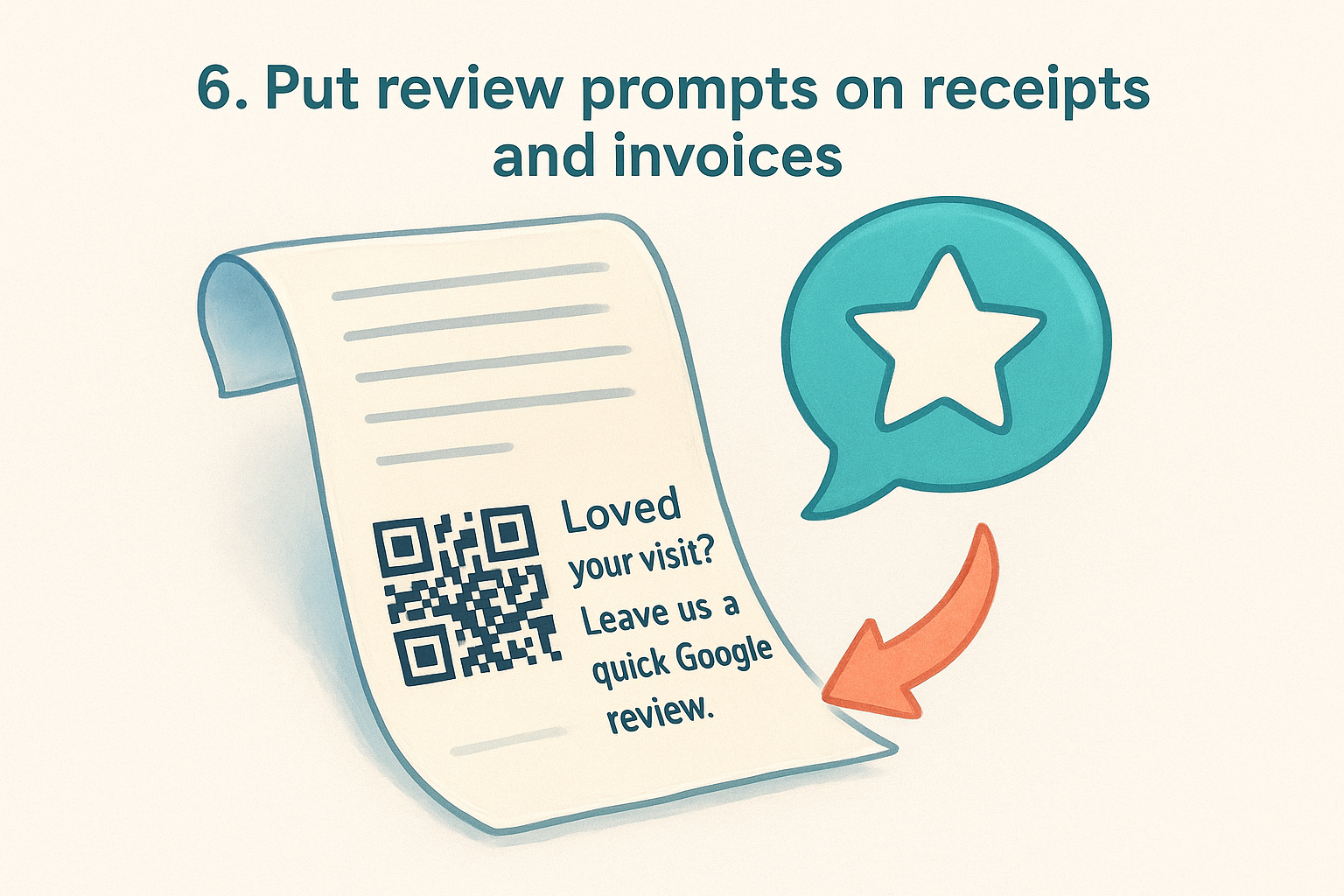
6. Put review prompts on receipts and invoices
Receipts and invoices already reach your customers at a natural end point in the transaction. Adding a review prompt and a direct link to those documents turns a piece of paper or email your customer was going to receive anyway into a low-effort review channel that costs almost nothing to maintain.
Why it works
Customers hold onto receipts longer than most businesses realize, especially digital ones. A printed or emailed receipt with a QR code catches attention at the moment a transaction wraps up, which is when the customer's experience is freshest and their motivation to act is highest. This is one of the quieter answers to how to get more Google reviews without adding any work to your team's day.
A review prompt embedded in a document customers already expect feels natural, not pushy.
How to set it up
Add your Google review link or QR code to the footer of every receipt or invoice template. For digital invoices, hyperlink the text directly. For printed receipts, include the QR code with a short line like " Loved your visit? Leave us a quick Google review. "
How to scale it to multiple locations
Update each location's receipt or invoice template with its own specific review link. Store all templates in a shared folder organized by location name so managers can update promotional content without accidentally using the wrong review URL .
Mistakes to avoid
Avoid cluttering the receipt with too many competing calls to action . One clear review prompt outperforms three different requests every time. Also, verify that printed QR codes remain scannable at the size your receipt printer produces before rolling them out across every location.
7. Respond to every Google review
Responding to reviews does more than show appreciation. Every public reply you write tells potential customers that your business pays attention and actually values what people say. That visibility builds the kind of trust that nudges future customers to leave reviews of their own.
Why it works
When someone sees that your business replies consistently, they feel more confident their feedback will matter. That confidence is one of the underrated answers to how to get more Google reviews , because people are more willing to share their experience when they expect their words to get a genuine response rather than silence.
An active reply history signals to both customers and Google that your profile is worth engaging with.
How to set it up
Log into your Google Business Profile and enable review notifications so you see each review as it arrives. Acknowledge specific details from each review rather than copying the same generic template to every reply.
- Reply to every review within 48 hours of receiving it
- Use the reviewer's name and reference their specific experience to keep the response personal
How to scale it to multiple locations
Assign a dedicated responder for each location rather than funneling every reply through one central contact. Build a short response guide with approved language so your team maintains a consistent brand voice across all locations without sounding scripted.
Mistakes to avoid
Never ignore negative reviews or respond defensively to them. A calm, professional reply to a bad review builds more trust than several replies to positive ones alone. Also avoid sending identical template replies to every review, because customers notice that pattern quickly and it signals you are not really reading what they wrote.
8. Use surveys to catch issues and earn reviews
A short post-visit survey does two things at once: it catches unhappy customers before they vent publicly, and it gives satisfied customers a natural path to leave a Google review . That dual function makes surveys one of the smarter tools for anyone working out how to get more Google reviews without creating friction.
Why it works
Surveys intercept your customer's feedback at a controlled point. When someone rates their experience negatively inside a survey , you get a private heads-up to fix the issue before it becomes a public review. Customers who rate positively get routed directly to your Google Business Profile , which naturally filters your public reviews toward the higher end.
Catching a bad experience privately is far less damaging than reading about it for the first time in a one-star review.
How to set it up
Keep the survey to two or three questions at most . A simple satisfaction rating plus an open comment field is enough. Use a basic conditional logic rule so that high scorers immediately see your Google review link and low scorers see a follow-up form asking what went wrong.
How to scale it to multiple locations
Build a location-specific survey template for each site and include the matching Google review link in the redirect flow. Store each version in a shared folder so location managers can update them without creating duplicate or mismatched links .
Mistakes to avoid
Avoid making surveys long or complicated , because completion rates drop sharply with every extra question. Also, never ignore the negative responses you collect . Following up personally with an unhappy customer often turns a potential one-star review into a loyal return visit.
What to do this week
You now have eight clear answers to how to get more Google reviews , and the gap between reading this and actually collecting more reviews comes down to one thing: starting. Pick two or three strategies from this list and put them in motion before the week ends. Set up your direct review links today , and if you run multiple locations, build that shared document so every team member has the right link ready to use.
If you want the fastest path to consistent reviews across all your locations, automation is where you start . Multi Web Team builds review request tools directly into your website management service , so every location stays active without your team having to remember to ask. Visit Multi Web Team to see how we handle review generation alongside full website management for multi-location businesses.