13 Small Business Web Design Tips To Boost Conversions
Your website is either working for you or against you, there's no middle ground. For small businesses competing with bigger brands, a well-designed site can be the difference between a visitor who converts and one who bounces in seconds. The right small business web design tips don't just make your site look better; they directly impact how many visitors become paying customers .
Most business owners know their website matters, but few realize how specific design choices, button placement, page speed, mobile layout, shape buyer behavior. A single tweak can lift conversions by double digits, while a common mistake can quietly cost you thousands in lost revenue. Understanding what actually moves the needle is more valuable than chasing every design trend that pops up on your feed. That's exactly what this guide covers .
At Multi Web Team, we design and manage websites for growing multi-location businesses and franchises, so we see firsthand what works and what falls flat. Below, we've pulled together 13 actionable web design tips drawn from real experience building sites that attract visitors and turn them into customers. Whether you're launching your first site or reworking an existing one, these tips will help you make smarter design decisions starting today.
1. Use a managed web team for ongoing updates
Your website is not a one-time project you build and forget. Outdated content, broken links, and stale promotions signal to visitors that you're not paying attention, and that erodes trust before they ever contact you. Treating your site as a living part of your business is one of the most effective small business web design tips you can act on today.
What to do
Partner with a managed web team that handles ongoing updates, maintenance, and SEO adjustments as part of a recurring service. This means you have professionals updating your site whenever you launch a new promotion, change your hours, or add a service. A managed model removes the bottleneck of doing everything yourself or waiting weeks for a freelancer to respond.
Why it boosts conversions
Visitors notice when a website feels current. Fresh content and accurate information build confidence that you're an active, reliable business. When your site reflects what you actually offer right now, visitors are far more likely to take the next step and reach out.
A site that's regularly updated converts better because it answers the visitor's current question, not last year's version of it.
How to implement it for one location vs many
For a single-location business , the priority is keeping your core pages updated: homepage offers, service descriptions, contact details, and any seasonal content. Even small changes, like swapping a photo or refreshing a headline, keep the site feeling alive and relevant.
Multi-location businesses and franchises face a larger challenge. Each location needs its own accurate details, hours, and local content, and a managed web team handles this centrally , so changes roll out across all locations consistently. This prevents outdated information from damaging your local search rankings or sending customers to the wrong address.
Quick checklist
- Assign someone internally or externally to own your website updates
- Review core pages every 30 days for accuracy
- Update promotions, pricing, and photos whenever they change
- Audit location-specific pages quarterly if you run multiple locations or a franchise
- Confirm contact details, hours, and calls-to-action are correct before any campaign goes live
2. Plan your site around customer journeys
Most small business websites are built around what the owner wants to show, not what the visitor needs to find. Structuring your site around how real customers think and move is one of the most underused small business web design tips, and it directly affects whether visitors take action or leave.
What to do
Identify the three to five main paths a visitor takes from first landing on your site to completing a conversion, whether that's a purchase, a booking, or a call. Build your pages, links, and CTAs to support those paths rather than your internal preferences.
Why it boosts conversions
When visitors can find what they need without thinking, friction drops and conversion rates rise . A site that mirrors a customer's natural decision process keeps them moving forward instead of hunting for answers.
If your site forces visitors to search for basic information, most will leave before they ever reach your contact page.
How to map pages to real customer tasks
Start by listing the top questions your customers ask before they buy or book. Then check whether your current pages answer those questions clearly and in the right order. Use this framework to align pages with customer intent:
| Customer question | Page that answers it |
|---|---|
| What do you offer? | Service or product pages |
| Where are you located? | Location or contact page |
| Can I trust you? | About page, reviews, testimonials |
| How do I get started? | Booking, contact, or pricing page |
Quick checklist
- List your top three customer paths before building or redesigning any page
- Confirm each page answers a real visitor question
- Remove pages that exist for internal reasons but add no value to the visitor
- Test your site with someone unfamiliar to see where they get stuck
3. Keep navigation simple and predictable
Navigation is the backbone of your site's usability. When visitors land on your page, they rely on your menu to orient themselves and find what they need fast. If your navigation confuses them, they leave, and no amount of great content will save a page that's hard to reach.
What to do
Limit your main menu to five to seven items , using plain language that matches what your customers actually search for. Avoid clever labels like "Our World" or "Solutions Hub" in favor of straightforward terms like "Services," "Locations," and "Contact."
Why it boosts conversions
Simple navigation reduces the mental effort visitors spend figuring out where to go. Lower friction means more visitors reach your key conversion pages , whether that's a booking form, a quote request, or a phone number.
When visitors have to guess what a menu label means, most will not guess correctly, they will simply leave.
How to structure menus, headers, and footers
Your header navigation should include only your highest-priority pages. Reserve secondary links, such as FAQs, privacy policies, and social media profiles, for the footer. This is one of the most practical small business web design tips because it keeps the path to conversion uncluttered. Adding a sticky header lets visitors access navigation at any point without scrolling back to the top of the page.
Quick checklist
Treat your navigation audit as a recurring task, not a one-time fix. Even small changes like renaming a confusing label can noticeably improve how far visitors move through your site.
- Limit top-level menu items to seven or fewer
- Use plain, descriptive language on every link
- Place contact or booking options in the header, not inside a dropdown
- Move legal pages, secondary links, and social icons to the footer
- Test all navigation links on mobile to confirm they are tappable
4. Make your homepage instantly clear
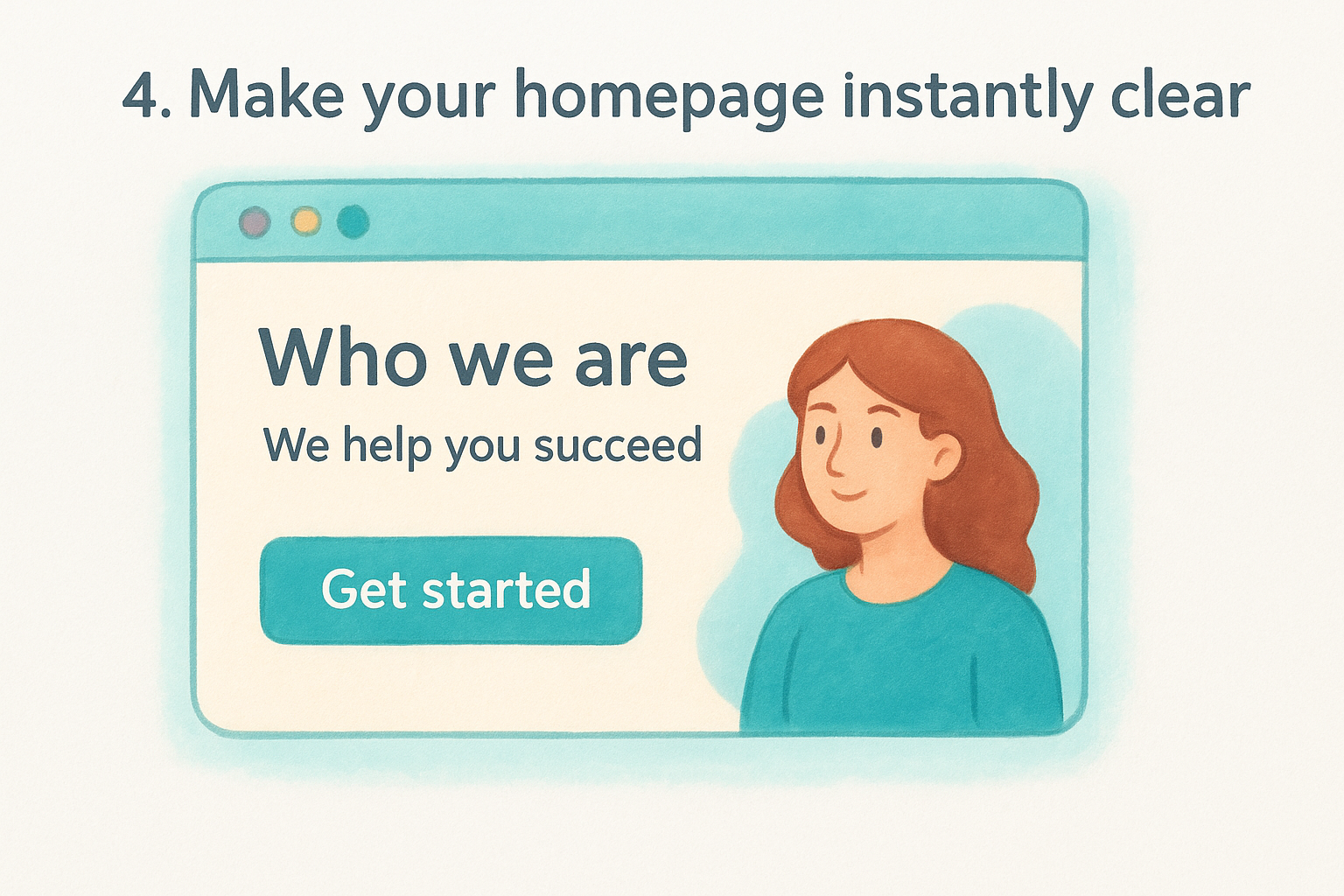
Your homepage has one job: tell visitors who you are, what you do, and what to do next within seconds of arriving. If they have to scroll, read multiple paragraphs, or guess your purpose , you've already lost most of them before they ever consider contacting you.
What to do
Lead with a single, specific headline that states your value proposition in plain language. Follow it with one supporting sentence, a clear call-to-action button , and a visual that reinforces your message. Skip the vague taglines and clever copy for your above-the-fold area.
Why it boosts conversions
Visitors decide within a few seconds whether to stay or leave. A homepage that communicates its purpose immediately keeps visitors moving toward your conversion goal instead of clicking back to search results. Every extra second they spend confused is a second they spend reconsidering whether to stay.
The homepage is not the place to show everything you offer; it's the place to make one compelling case for why visitors should stay.
How to structure above-the-fold content and sections
Above the fold should contain your headline, subheadline, and primary CTA button. Below that, use short, focused sections to build the case: what you offer, who you serve, proof through reviews or credentials, and a final CTA. This is one of the most transferable small business web design tips because it works across industries and business sizes .
Quick checklist
Apply this checklist every time you redesign or refresh your homepage:
- Write a headline that names your service and target customer
- Place your primary CTA above the fold
- Use one clear visual that matches your message
- Limit homepage sections to six or fewer
- End the page with a second CTA for visitors who scroll to the bottom
5. Build focused service pages for each offer
A single catch-all "Services" page that lists everything you do in bullet form is one of the most common mistakes in small business web design . Visitors land on it, see a wall of text, and leave without acting. Dedicated pages for each service give you space to address specific customer questions and drive targeted action.
What to do
Create a separate page for every distinct service or offer you provide. Each page should focus on one service only, using a clear headline, a description of what's included, who it's for, and a direct call-to-action. Keep the language specific rather than generic.
Why it boosts conversions
Focused service pages convert better because they match the visitor's exact intent. When someone searches for a specific service and lands on a page built around that topic, they immediately feel like they're in the right place . One of the most overlooked small business web design tips is that relevance reduces hesitation, and hesitation is what kills conversions.
A visitor who lands on a page that directly answers their specific question is far more likely to take action than one who has to sift through a general overview.
How to write and lay out a converting service page
Lead with a headline that names the service and its primary benefit . Follow with a short description, key details like pricing or process, and social proof such as a testimonial or result. Close with a clear CTA.
Quick checklist
- Create one page per service , not a combined list
- Include a CTA on every service page
- Add at least one testimonial specific to that service
- Link related service pages to each other
6. Create location pages for local intent
If you run multiple locations, a single generic contact page won't cut it for local search. Visitors searching for your service in a specific city expect to land on a page built for that exact location, not a one-size-fits-all overview that mentions nothing specific about where they are.
What to do
Build a dedicated page for each physical location you operate. Each page should include the location's address, phone number, hours, and a description of services available there. At minimum, cover these four elements on every location page:
- Full address and a local phone number
- Hours of operation specific to that branch
- A short description of what that location offers
- At least one location-specific review or testimonial
Why it boosts conversions
Location-specific pages match what local searchers are actually looking for , which means visitors arrive already primed to act. This is one of the most effective small business web design tips for multi-location businesses because it connects the right customer to the right location without extra steps.
A visitor searching for your service in their city wants a page built specifically for them, not a page designed for someone three states away.
How to avoid duplicate content across locations
Use unique details on every location page to differentiate them. Include location-specific staff names, nearby landmarks, and any services exclusive to that branch. Google's structured data guidelines recommend applying LocalBusiness schema markup so search engines correctly identify each location as a distinct entity .
Quick checklist
- Create one page per physical location
- Write unique body content for each location page
- Add LocalBusiness schema markup to every location page
- Link all location pages from a central locations directory
7. Design mobile-first and thumb-friendly
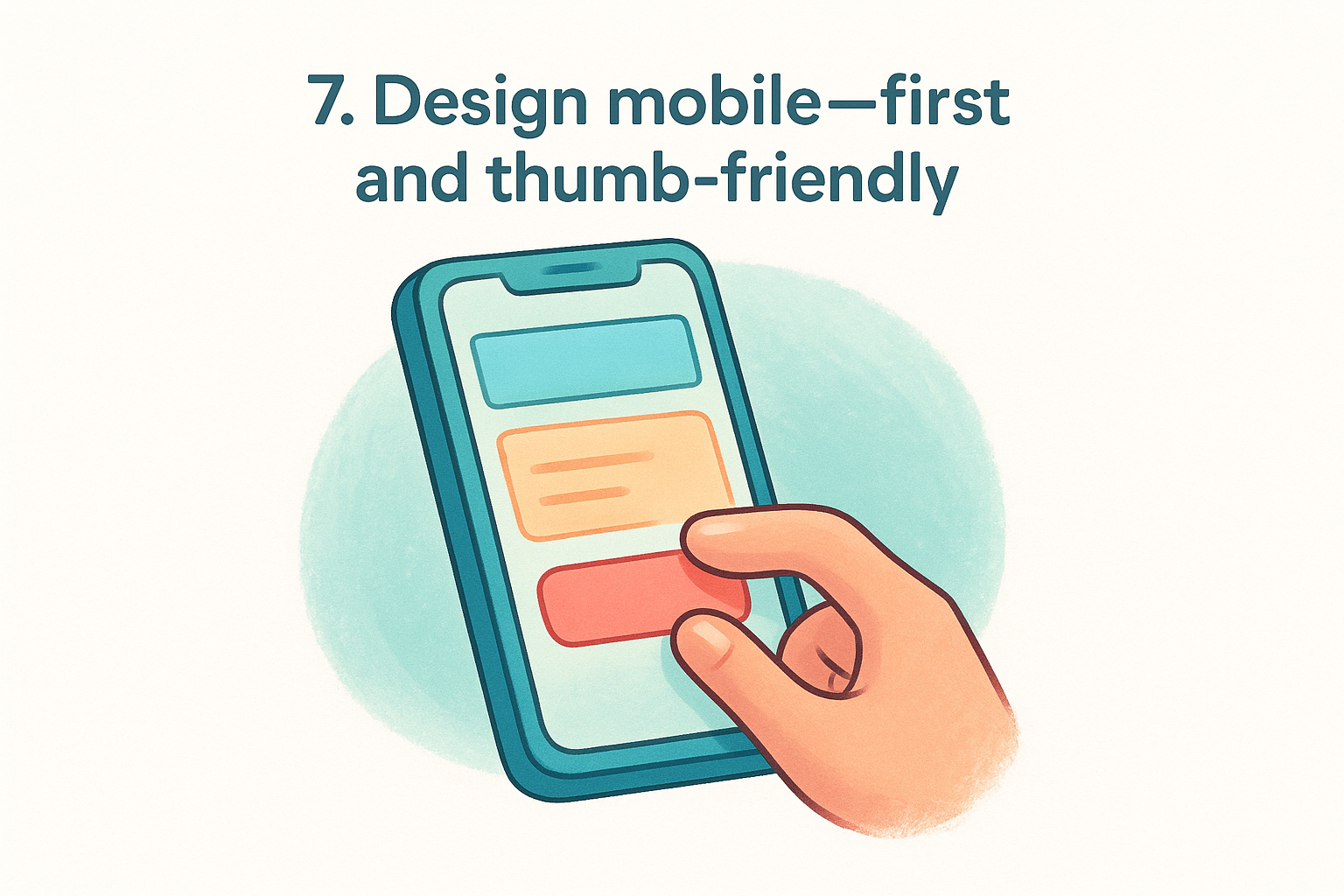
More than half of all web traffic now comes from mobile devices, yet many small business websites are still designed on a desktop and adapted for mobile as an afterthought . That approach produces layouts that frustrate phone users and cost you conversions. Building mobile-first means you design for the smallest screen first, then scale up.
What to do
Start every design decision with a phone screen in mind. Buttons should be at least 44x44 pixels so thumbs can tap them without zooming in. Place your most important actions, such as your call button or booking form , within easy thumb reach in the lower half of the screen.
Why it boosts conversions
One of the most practical small business web design tips is that a poor mobile experience sends visitors straight back to search results. Google uses mobile-first indexing , meaning it evaluates your mobile version to determine your rankings. A smooth, thumb-friendly design keeps visitors engaged and makes the path to conversion shorter and easier.
If your mobile site makes visitors pinch, zoom, or scroll sideways to read basic content, you will lose them before they convert.
How to test mobile layouts and interactions
Test your site on real devices, not just browser emulators . Use Google Search Console to identify mobile usability issues flagged directly by Google. Walk through every form, button tap, and navigation menu on at least two different phone sizes to confirm everything works as expected .
Quick checklist
- Set tap targets to at least 44x44 pixels
- Place CTAs within thumb reach on every key page
- Test all forms and menus on real mobile devices
- Confirm text is readable without zooming
8. Fix speed and Core Web Vitals
A slow website doesn't just frustrate visitors, it actively costs you conversions and search rankings. Page speed and Core Web Vitals are among the most technical small business web design tips on this list, but they're also among the most impactful. Google measures three specific metrics: Largest Contentful Paint (LCP), Interaction to Next Paint (INP), and Cumulative Layout Shift (CLS) , and each one signals how your site feels to real users.
What to do
Audit your site using Google PageSpeed Insights to get a score and specific recommendations for both mobile and desktop. Focus on your LCP score first , since it measures how fast your main content loads, which is the metric most directly tied to how visitors perceive your site's speed.
Why it boosts conversions
Slow pages lose visitors before they even see your content. Conversions drop measurably as load time increases, even by one or two seconds. Fixing speed issues also improves your Google rankings, which means more qualified visitors reaching your pages in the first place.
Every second your page takes to load costs you a measurable percentage of visitors who would otherwise convert.
How to improve LCP, INP, and CLS without breaking design
Compress and properly size all images before uploading them, since oversized images are the most common cause of poor LCP scores. Avoid injecting content above existing elements after load, which triggers CLS. Reducing unused JavaScript and CSS improves INP without requiring you to change your visual design at all.
Quick checklist
- Run Google PageSpeed Insights on every key page
- Compress images and use modern formats like WebP
- Fix layout shift issues flagged in the report
- Remove unused scripts and plugins
9. Use visuals that support your message
Visuals shape how visitors judge your credibility before they read a single word. Stock photos that look generic and images that don't match your copy actively undermine the trust you're trying to build. Choosing visuals intentionally is one of the most practical small business web design tips you can apply without touching your code.
What to do
Use real photos of your team, your locations, and your actual work wherever possible. Authentic visuals consistently outperform stock photography because they give visitors something specific and verifiable to connect with. If you do use stock photos, select ones that feel natural rather than staged.
Why it boosts conversions
Visitors process images faster than text, which means a visual that reinforces your message pulls them deeper into the page , while a mismatched one breaks their focus. When your images show real results, real people, and real environments, visitors trust that your promises are credible.
Replacing a generic stock photo with an actual photo of your team or location can noticeably increase the time visitors spend on a page.
How to choose, format, and place images and video
Place your strongest visual near the top of each page to immediately support your headline. Use video for any process or result that's difficult to describe in text, such as a before-and-after or a quick service walkthrough. Compress every image before uploading to avoid slowing your page load time.
Quick checklist
Walk through every page and evaluate whether each visual earns its place.
- Replace generic stock photos with real photos of your business
- Add at least one video to high-priority pages where possible
- Compress images to keep file sizes under 200KB when practical
- Confirm each visual directly supports the surrounding text
10. Use typography and spacing for readability
Typography and spacing are among the most overlooked small business web design tips , yet they directly affect whether visitors read your content or skip past it. Poor font choices and cramped layouts make reading feel like work, and that friction pushes visitors toward the exit before they ever reach your call-to-action.
What to do
Choose two fonts at most : one for headings and one for body text. Set your body font size to at least 16px and keep line height between 1.5 and 1.7 to give text room to breathe. Stick with widely supported, screen-friendly fonts to avoid rendering issues across different devices and browsers.
Why it boosts conversions
When text is easy to read , visitors spend more time on the page and absorb more of your message. Longer time on page correlates with higher conversion rates because visitors who read your full offer are far more likely to act on it.
Difficult-to-read text is not just a design problem; it's a conversion problem that compounds across every visitor who leaves without reading your offer.
How to set fonts, sizes, line length, and white space
Keep line length between 55 and 75 characters per line to reduce eye strain across all screen sizes. Use generous white space between sections and paragraphs to signal visual breaks and help visitors scan. Avoid centering large blocks of body text, since left-aligned text is significantly easier to follow on both desktop and mobile.
Quick checklist
Run through these typography checks on every key page before publishing or making design updates to confirm readability.
- Set body font size to 16px or larger
- Limit line length to 55 to 75 characters
- Use 1.5 to 1.7 line height for body text
- Left-align all body content
- Apply consistent spacing between all page sections
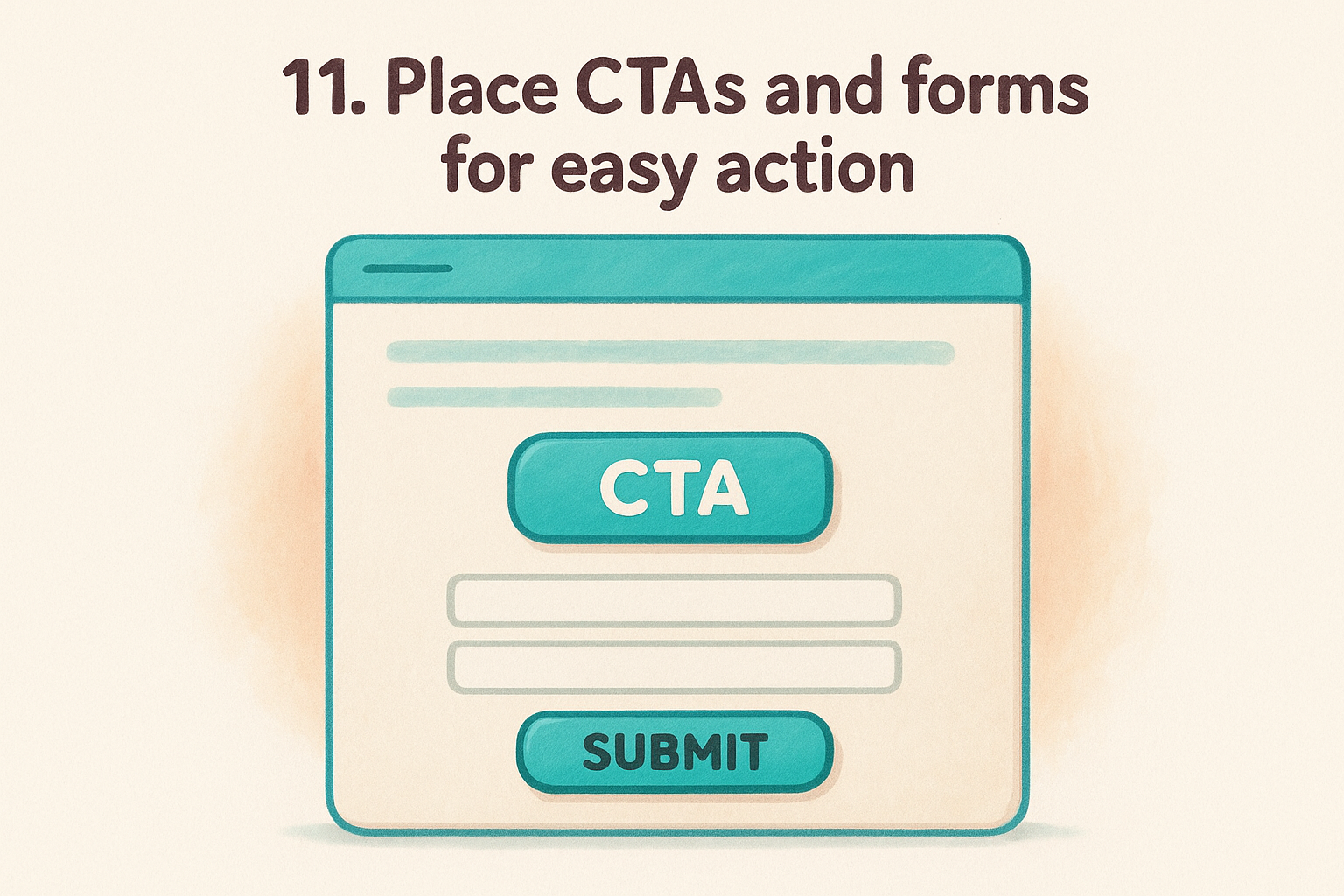
11. Place CTAs and forms for easy action
Your calls-to-action and forms are where visitors either convert or abandon. Burying your CTA at the bottom of a long page or building a form with too many required fields creates friction at exactly the wrong moment. Among the most actionable small business web design tips , this one sits closest to the money.
What to do
Place at least one CTA above the fold on every key page, and repeat it at natural stopping points as visitors scroll. For forms, collect only the information you actually need to follow up. Every extra field you add reduces the number of people who complete the form, so cut anything you don't use within 48 hours of receiving it.
Why it boosts conversions
Visitors who reach your CTA are already interested. If the button is hard to find or the form feels overwhelming, that momentum disappears fast . A clearly placed, low-friction action path removes the last obstacle between a motivated visitor and a conversion.
The visitor who fills out your form has already decided to act; your job is to make sure the form doesn't talk them out of it.
How to reduce friction in forms and booking flows
Shorten forms to three to five fields for most use cases. Use placeholder text to show visitors exactly what format to enter. If your booking flow spans multiple steps, show a progress indicator so visitors know how close they are to finishing.
Quick checklist
- Place a CTA above the fold on every high-priority page
- Limit forms to five fields or fewer
- Use clear, action-oriented button labels like "Book a Free Consultation"
- Add a progress bar to any multi-step form or booking flow
12. Build trust with security and accessibility
Visitors make snap judgments about whether your site is safe to use , and those judgments happen before they read your content. An insecure or inaccessible website signals that you cut corners, and that perception carries over into how visitors feel about your business as a whole.
What to do
Make sure your site runs on HTTPS, not HTTP , so visitors see a padlock in the browser bar. Add a privacy policy that explains what data you collect and how you use it. For accessibility, ensure your site meets the core requirements of the Web Content Accessibility Guidelines (WCAG) , including sufficient color contrast and keyboard navigation support.
Why it boosts conversions
Security and accessibility are two of the most underrated small business web design tips because their absence quietly kills trust. Visitors who see a "Not Secure" warning in their browser will almost never complete a form or make a purchase, and that loss happens before they even read your offer .
A single security warning can eliminate conversions from an otherwise well-designed page.
How to cover HTTPS, privacy basics, and accessibility essentials
Your hosting provider typically makes HTTPS setup straightforward through a free SSL certificate . For accessibility, use Google's Lighthouse tool to audit your pages and identify specific issues like missing alt text, low contrast ratios, or unlabeled form fields . Fix the highest-impact items first, then work through the rest systematically.
Quick checklist
- Confirm your site runs on HTTPS across every page
- Publish a privacy policy that covers data collection
- Add descriptive alt text to every image
- Check color contrast ratios meet WCAG AA standards
Next steps
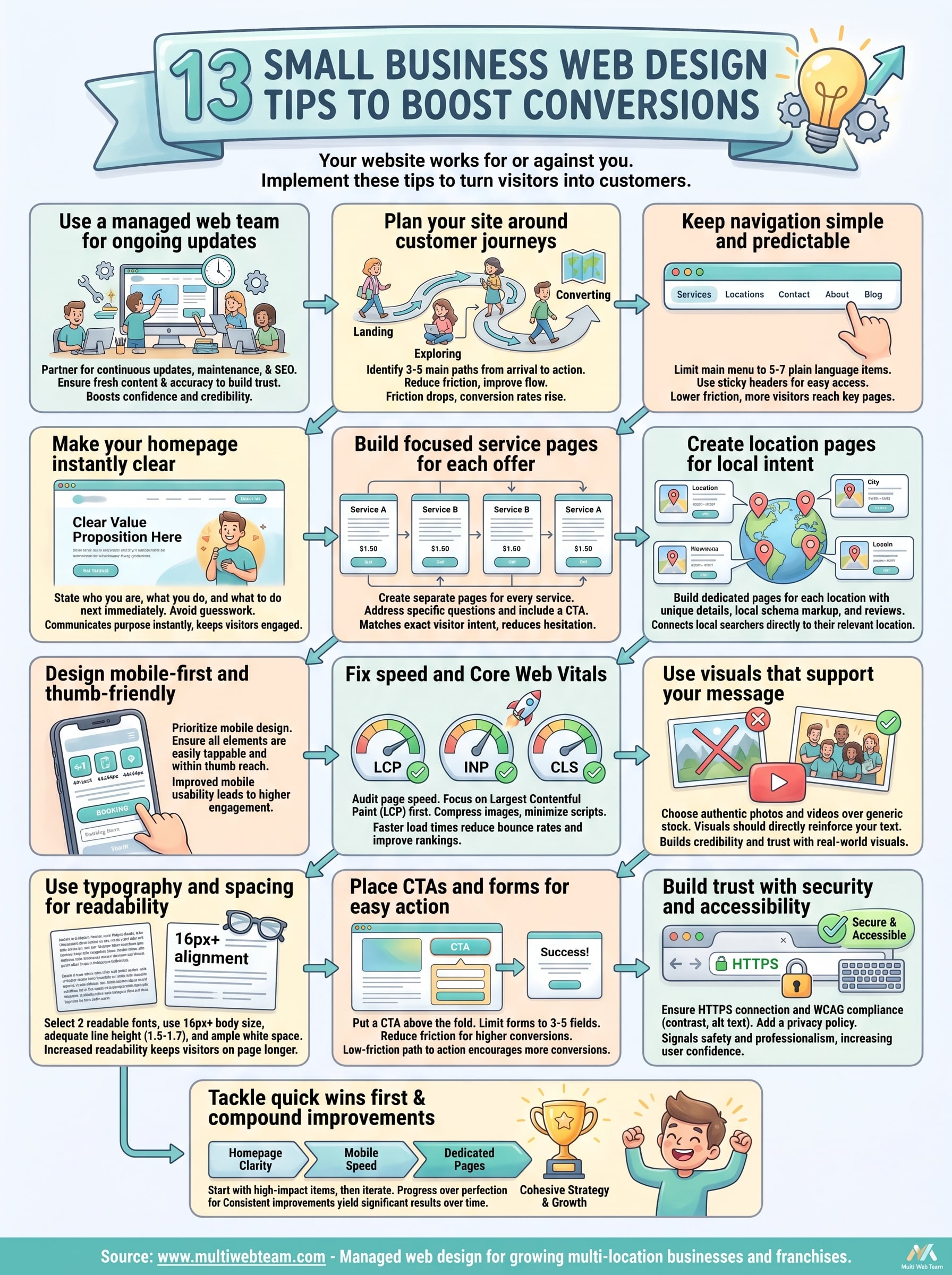
These 13 small business web design tips give you a clear, practical starting point for turning your website into a tool that actually generates business. Each tip works on its own, but the biggest gains come from applying them together as a cohesive strategy rather than isolated fixes.
Start with the highest-impact items first: clarify your homepage message, build dedicated service and location pages, and confirm your site loads fast on mobile. Tackle the quick wins before moving on to more involved changes like accessibility audits or schema markup. Progress matters more than perfection, and small, consistent improvements compound over time.
If managing all of this alongside running your business feels like too much, you don't have to do it alone. Multi Web Team handles web design, ongoing updates, and local SEO for multi-location businesses under one straightforward subscription. See how we manage your web presence so you can stay focused on your customers.