How To Improve Website Speed: 9 Proven Fixes That Work
A slow website doesn't just frustrate visitors, it costs you customers. Studies consistently show that even a one-second delay in load time can drop conversions by 7% or more. If you're running a multi-location business or franchise, multiply that loss across every location page on your site, and the numbers get ugly fast. Knowing how to improve website speed isn't optional anymore; it's a basic requirement for staying competitive online.
The tricky part? Speed problems rarely come from one single issue. It's usually a stack of small things , bloated images, cheap hosting, unoptimized code, too many plugins, all dragging your site down together. And for businesses managing dozens of location pages, these problems compound quickly without anyone noticing until rankings tank and phone calls dry up.
At Multi Web Team, we build and manage websites for multi-location businesses and franchises, so we deal with speed optimization constantly. We've seen firsthand what slows sites down and, more importantly, what actually fixes the problem . This article breaks down nine proven strategies we use and recommend, practical steps you can apply whether you're handling your own site or working with a team. No vague advice, no filler. Just the specific fixes that make a measurable difference in how fast your pages load and how well they perform in search results.
1. Assign a dedicated web team to own speed
Speed problems don't fix themselves, and they don't stay fixed without someone actively managing them . The most common reason websites stay slow is simple: no one owns the problem . There's no designated person checking performance regularly, prioritizing fixes, or catching regressions after a site update. Without clear ownership, speed slips to the bottom of every priority list and stays there.
What you'll fix
When you assign a dedicated team or person to own speed, you close the accountability gap that lets slowdowns sit unaddressed for months. Multi-location websites are especially vulnerable here because every new location page, seasonal promotion, or content update is an opportunity to introduce new performance issues. Consistent oversight is what catches those issues before they compound into a larger problem that hits your rankings and conversions.
How to do it
Start by designating a specific role or team responsible for website performance. This doesn't have to be a full-time position, but it needs to be someone whose responsibilities include regularly auditing the site , acting on flagged issues, and reviewing speed metrics after every significant update. This is often the missing piece when businesses are trying to figure out how to improve website speed long-term.
If no one owns website speed, no one fixes it. That's not a team problem, it's a structure problem.
For multi-location businesses, document a speed standard (a target load time and Core Web Vitals score) and require every new page or feature to meet that standard before it goes live. Build speed reviews into your regular content and update workflow so performance checks happen automatically, not reactively.
Tools to use
Google Search Console gives you real-world performance data across your pages and flags URLs that are failing Core Web Vitals thresholds. Your team should review it on a regular schedule, not just when something seems wrong. Google PageSpeed Insights provides page-level diagnostics that help pinpoint exactly which elements need attention after any update.
How to tell it worked
You'll know ownership is working when speed issues get caught early , before they appear in your traffic or rankings data. Track your Core Web Vitals pass rate in Google Search Console over time, and watch average load times trend down rather than creep up after each round of site updates.
2. Measure Core Web Vitals and page weight
Before you fix anything, you need to know what's actually broken. Guessing at speed problems wastes time and sends you chasing the wrong issues. Measuring your Core Web Vitals and total page weight first gives you a clear baseline so every fix you make targets a real, documented problem rather than a hunch.

What you'll fix
Untracked performance issues stay broken indefinitely. Largest Contentful Paint (LCP) , Cumulative Layout Shift (CLS) , and Interaction to Next Paint (INP) are the three Core Web Vitals Google uses to evaluate real-world page experience. High page weight, usually driven by uncompressed assets or bloated scripts, pulls all three metrics down at once.
How to do it
Run your key pages through Google PageSpeed Insights to get both lab data and real-world field data. Focus on the prioritized recommendations it returns, since they're ordered by potential impact. For multi-location sites, test a sample of location pages, not just the homepage, because performance often varies significantly across your site.
Your homepage might pass Core Web Vitals while dozens of location pages fail. Test broadly.
Tools to use
Two tools cover most of what you need here:
- Google PageSpeed Insights : page-level diagnostics with actionable fix recommendations
- Google Search Console's Core Web Vitals report : real-user data across your entire site, showing which URLs are failing thresholds
How to tell it worked
Your baseline measurements become your benchmark. As you apply the strategies for how to improve website speed on specific pages, track whether LCP, INP, and CLS scores move into the "Good" range.
A rising Core Web Vitals pass rate in Search Console confirms your fixes are producing real results, not just improving lab scores.
3. Optimize images and media delivery
Images are almost always the heaviest assets on a webpage, and they're one of the fastest wins when you're working out how to improve website speed. Most sites are serving oversized, uncompressed images in outdated formats when lighter alternatives would load significantly faster without any visible quality loss.
What you'll fix
Unoptimized images drag down your Largest Contentful Paint (LCP) score more than almost any other single factor. For multi-location businesses, this problem multiplies across every location page that carries photos, team headshots, or promotional banners. Fixing image delivery is often the highest-impact change you can make, especially on mobile connections.
How to do it
Convert images to WebP format
, which delivers smaller file sizes than JPEG or PNG at comparable quality. Set explicit width and height attributes on every image so the browser reserves space before the file loads, which directly reduces layout shift. Add loading="lazy"
to images below the fold so the browser only fetches them when the user scrolls down.
Serving a 3MB hero image when a 200KB WebP would look identical is one of the most common speed problems we see on location pages.
Tools to use
- Google PageSpeed Insights : flags oversized images and estimates the savings from proper compression
- Squoosh (by Google): free browser-based tool for converting and compressing images before upload
How to tell it worked
Check LCP scores in Google PageSpeed Insights before and after your changes. You should also see total page weight drop noticeably in the diagnostics panel , confirming that your images are now loading lighter and faster.
4. Remove render blocking CSS and JavaScript
Render-blocking resources are files that force the browser to stop and load them completely before it can display anything on screen. CSS and JavaScript files loaded in the wrong place are the most common culprits, and they're one of the primary reasons visitors stare at a blank page even when their connection is fast.
What you'll fix
When your browser hits a render-blocking script or stylesheet, it pauses page rendering until that file finishes downloading and processing. Every second of that pause increases your First Contentful Paint time and pushes LCP in the wrong direction. Removing or deferring these resources is one of the highest-leverage moves when figuring out how to improve website speed.
A page with five render-blocking scripts can lose two or more seconds of load time before a single pixel appears on screen.
How to do it
Add the defer
or async
attribute to non-critical JavaScript files so the browser loads them without blocking the rendering pipeline
. Move non-critical CSS to load after the initial paint, or inline only the critical CSS
needed for above-the-fold content directly in the HTML head.
Tools to use
- Google PageSpeed Insights : lists render-blocking resources explicitly and estimates how much time each one is costing you
- Google Search Console : tracks real-user impact on Core Web Vitals after you deploy your changes
How to tell it worked
After applying your changes, rerun Google PageSpeed Insights on the same pages. You should see fewer flagged render-blocking resources and a faster First Contentful Paint score in the diagnostics panel.
5. Trim third party scripts and tags
Third-party scripts are one of the most overlooked speed killers on business websites. Chat widgets, tag managers, analytics tools, social media embeds, and ad trackers all add weight to your pages, and each one introduces a network request your browser has to complete before it can finish loading. For multi-location sites carrying the same scripts across dozens of pages, this cost multiplies with every page view.
What you'll fix
Every third-party script you load adds external network requests your server has no control over. A slow response from an outside analytics or advertising server holds up your entire page load, regardless of how well optimized your own code is. This is a direct drag on LCP and INP scores , and one of the fastest areas to recover time when you're working on how to improve website speed.
How to do it
Audit every script running on your site and ask whether each one is actively earning its place. Remove tags you no longer use
, consolidate redundant tools where possible, and load non-critical scripts with the defer
attribute so they stop blocking the browser's rendering process.
One unused tag from a campaign that ended six months ago can still be slowing your site down today.
Tools to use
- Google PageSpeed Insights : flags third-party scripts contributing to load time and estimates the delay each one causes in the diagnostics panel
How to tell it worked
After trimming your tags, rerun Google PageSpeed Insights on your key pages. Watch for a reduction in total blocking time and a drop in the number of third-party requests listed in the diagnostics.
6. Add caching and a CDN the right way
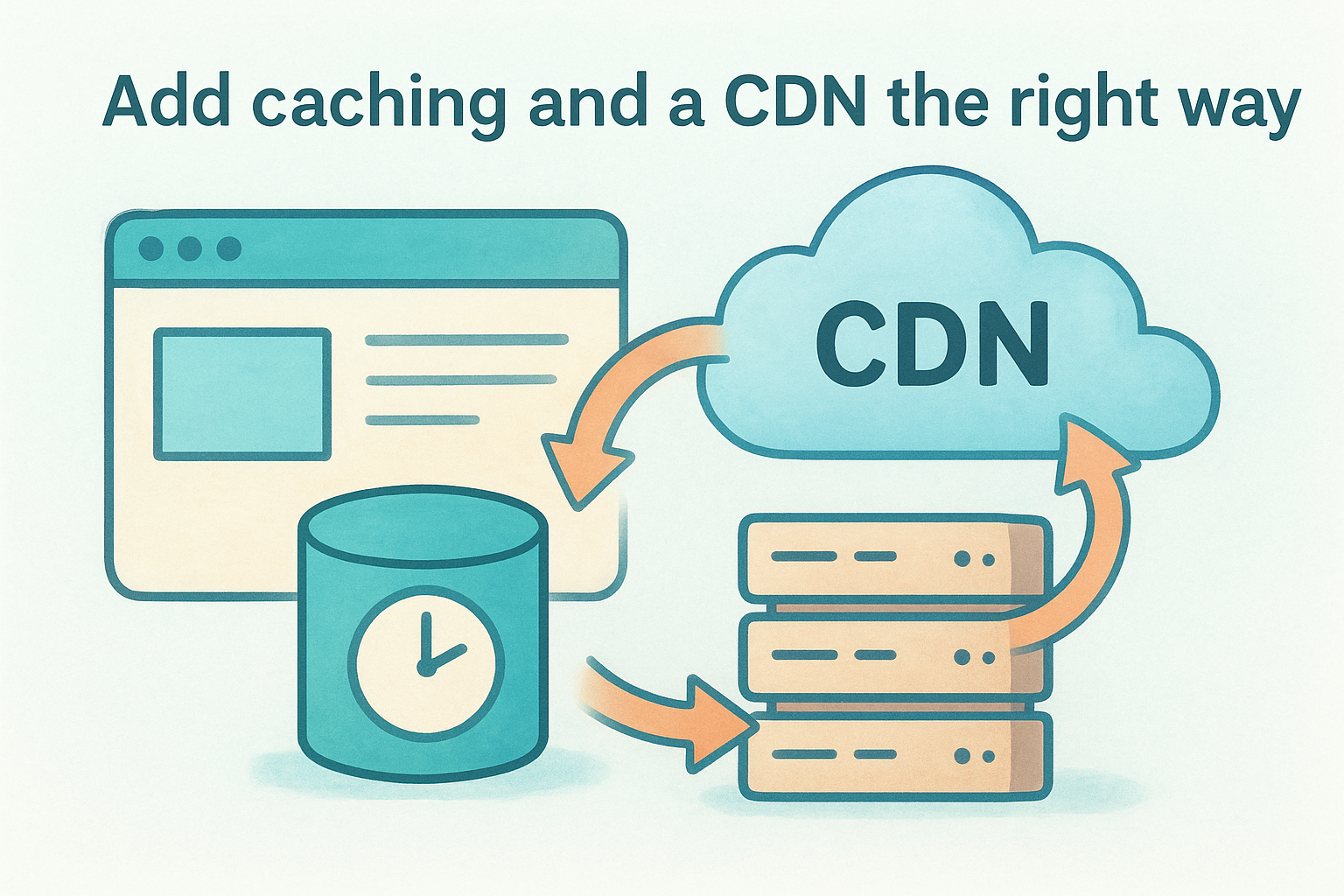
Caching and content delivery networks are two of the most reliable tools for reducing load times at scale , yet most sites either skip them entirely or set them up incorrectly. When both are configured well, your pages load faster for every visitor regardless of where they are located.
What you'll fix
Without proper caching, your server rebuilds every page from scratch on each individual request , which wastes processing time and adds unnecessary latency. A CDN solves a separate but related problem: it serves your static assets from a server physically closer to the visitor , cutting the distance data has to travel and shaving real milliseconds off every load.
Skipping a CDN for a multi-location business means visitors in distant cities are waiting longer than they should, every single time.
How to do it
Set browser cache headers on static files like images, CSS, and JavaScript so returning visitors load those assets from their local cache instead of requesting them again. Configure your CDN to cache those same static assets at the edge, and make sure cache-control rules are specific enough to avoid serving outdated content after updates.
Tools to use
- Google PageSpeed Insights : flags missing or misconfigured cache policies and estimates the time you'd recover by fixing them
How to tell it worked
Rerun Google PageSpeed Insights after your changes and check whether cache-related warnings disappear from the diagnostics. Tracking your LCP and Time to First Byte scores before and after confirms that this part of how to improve website speed is actually delivering faster responses to real users.
7. Improve server and database response times
Even a perfectly optimized front end will load slowly if your server takes too long to respond. Time to First Byte (TTFB) measures how quickly your server starts sending data back to the browser, and a slow TTFB adds latency before any other part of how to improve website speed even has a chance to matter.
What you'll fix
A slow server response usually points to underpowered hosting, inefficient database queries, or an overloaded server processing too many requests at once. For multi-location sites with dozens of location pages, slow database lookups on every page request add up to real, measurable delays that drag down your TTFB across the entire site.
How to do it
Upgrade to a hosting plan that matches your actual traffic needs, and consider managed hosting for better server-side optimization out of the box. Enable database query caching so repeated lookups return stored results instead of hitting the database fresh on every single request.
Cheap shared hosting might cost less upfront, but the speed penalty it creates across every location page will cost you more in lost conversions over time.
Tools to use
Google PageSpeed Insights flags slow server response times directly in its diagnostics and estimates how much your TTFB is contributing to your overall load delay .
How to tell it worked
After your server changes, rerun Google PageSpeed Insights and check whether the TTFB warning clears from the diagnostics panel. A faster Time to First Byte confirms your server is responding more efficiently to real user requests.
8. Reduce requests and fix redirects
Every HTTP request your page makes adds time to the load process, and every unnecessary redirect adds an extra round trip to the server before the browser can even start loading the page. Cutting both is one of the most straightforward ways to improve page performance without touching your hosting or code architecture.
What you'll fix
Too many HTTP requests force the browser to fetch each asset individually , including scripts, stylesheets, fonts, and images, before it can finish rendering your page. Redirect chains create a separate problem: each hop in a chain like HTTP to HTTPS to www adds measurable latency that stacks up before a single resource loads. Multi-location sites are especially prone to redirect chains that accumulate over time as URL structures change.
How to do it
Combine CSS files where possible and remove duplicate or unused stylesheet references to cut down the total number of requests. Audit your redirects and flatten any chains down to a single direct redirect so the browser reaches the destination in one hop instead of two or three. This is a quick but often overlooked part of how to improve website speed across large sites.
A redirect chain with three hops can add 300 to 600 milliseconds before the browser even starts loading your page content.
Tools to use
Google PageSpeed Insights surfaces unnecessary redirects in its diagnostics and flags opportunities to reduce request counts across your page assets.
How to tell it worked
Rerun Google PageSpeed Insights after your changes and check whether redirect warnings and request-count flags clear from the diagnostics panel. Fewer flagged issues and a lower total request count confirm your changes are working.
9. Set up speed monitoring and alerts
All nine strategies for how to improve website speed only hold their value if you catch regressions before they compound . A site update, a new plugin, or a change to a third-party script can quietly undo months of optimization work overnight. Automated monitoring is what keeps you from finding out about a performance drop through a drop in leads rather than a dashboard alert.
What you'll fix
Without monitoring in place, speed problems return undetected and stay broken for weeks or months. For multi-location sites, a single template change can degrade performance across every location page simultaneously. Consistent monitoring closes that gap by surfacing issues as soon as they appear.
How to do it
Schedule a recurring audit of your Core Web Vitals report in Google Search Console and set it as a standing agenda item on your team's regular review cycle. After every significant site update, run your key pages through Google PageSpeed Insights immediately so you catch any regressions before they affect real users.
If you only check speed after traffic drops, you're already paying for the problem.
Tools to use
- Google Search Console : tracks real-user Core Web Vitals data across your entire site and flags URLs that fall below passing thresholds
- Google PageSpeed Insights : provides on-demand page-level diagnostics after any site change
How to tell it worked
Your Core Web Vitals pass rate in Search Console should hold steady or improve over time, even as your site grows and updates continue rolling out. A stable pass rate confirms your monitoring process is catching problems early and keeping your performance gains intact.
Next steps
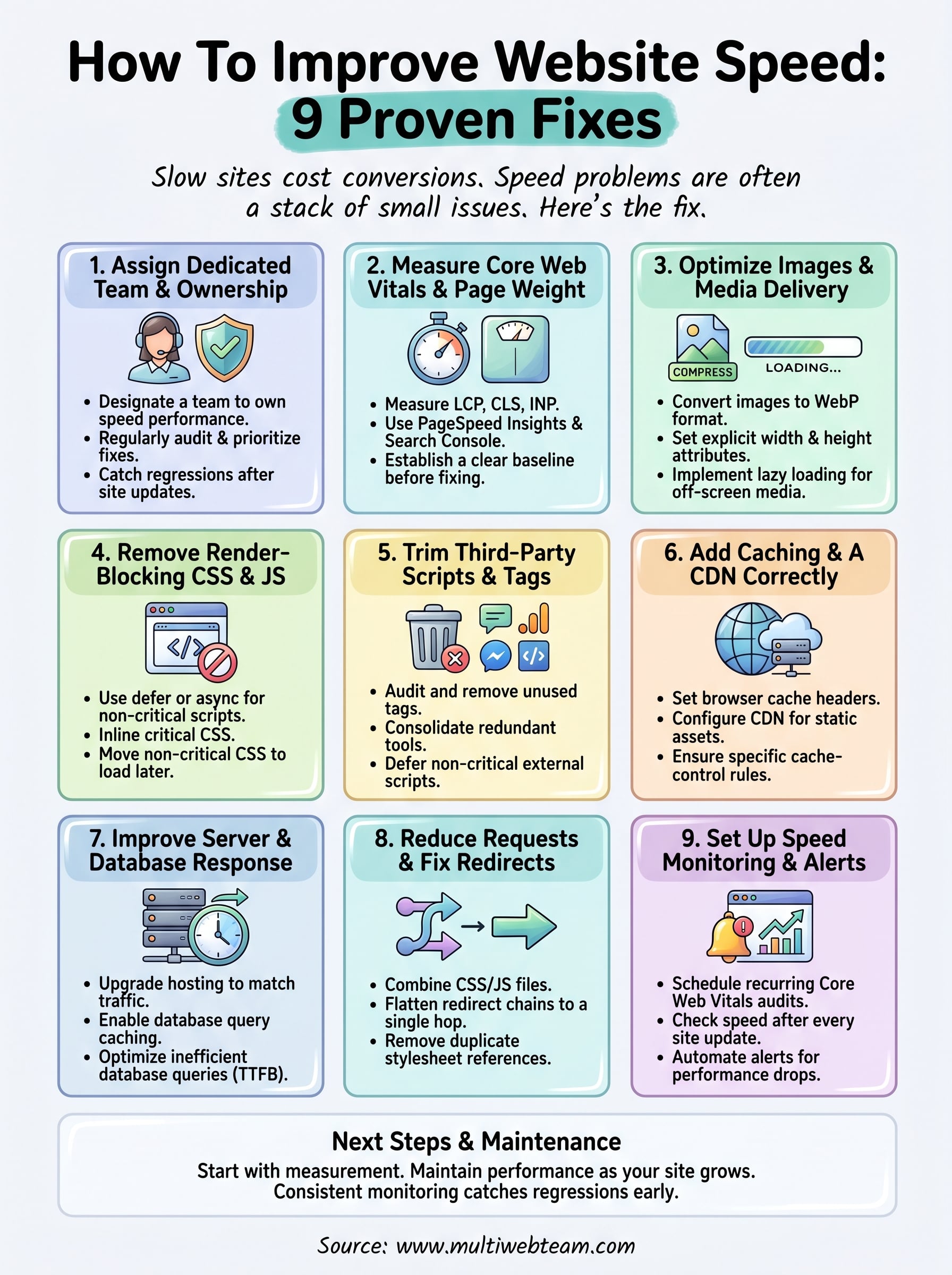
You now have a complete, prioritized framework for how to improve website speed across every page of your site. The fastest path forward is to start with measurement , run your key pages through Google PageSpeed Insights and Search Console, then work through the fixes in the order that delivers the biggest impact for your specific results.
For multi-location businesses and franchises, the challenge isn't just applying these fixes once. It's keeping speed from degrading as your site grows, new location pages go live, and updates roll out continuously. That requires either a disciplined internal process or a dedicated team handling it for you.
Multi Web Team builds and manages websites specifically for multi-location businesses and franchises, including ongoing speed optimization, SEO, and unlimited updates, all under one subscription. If you'd rather have an experienced team own your site performance instead of managing it yourself, see how Multi Web Team works.