8 Website Speed Optimization Tips for Faster Load Times
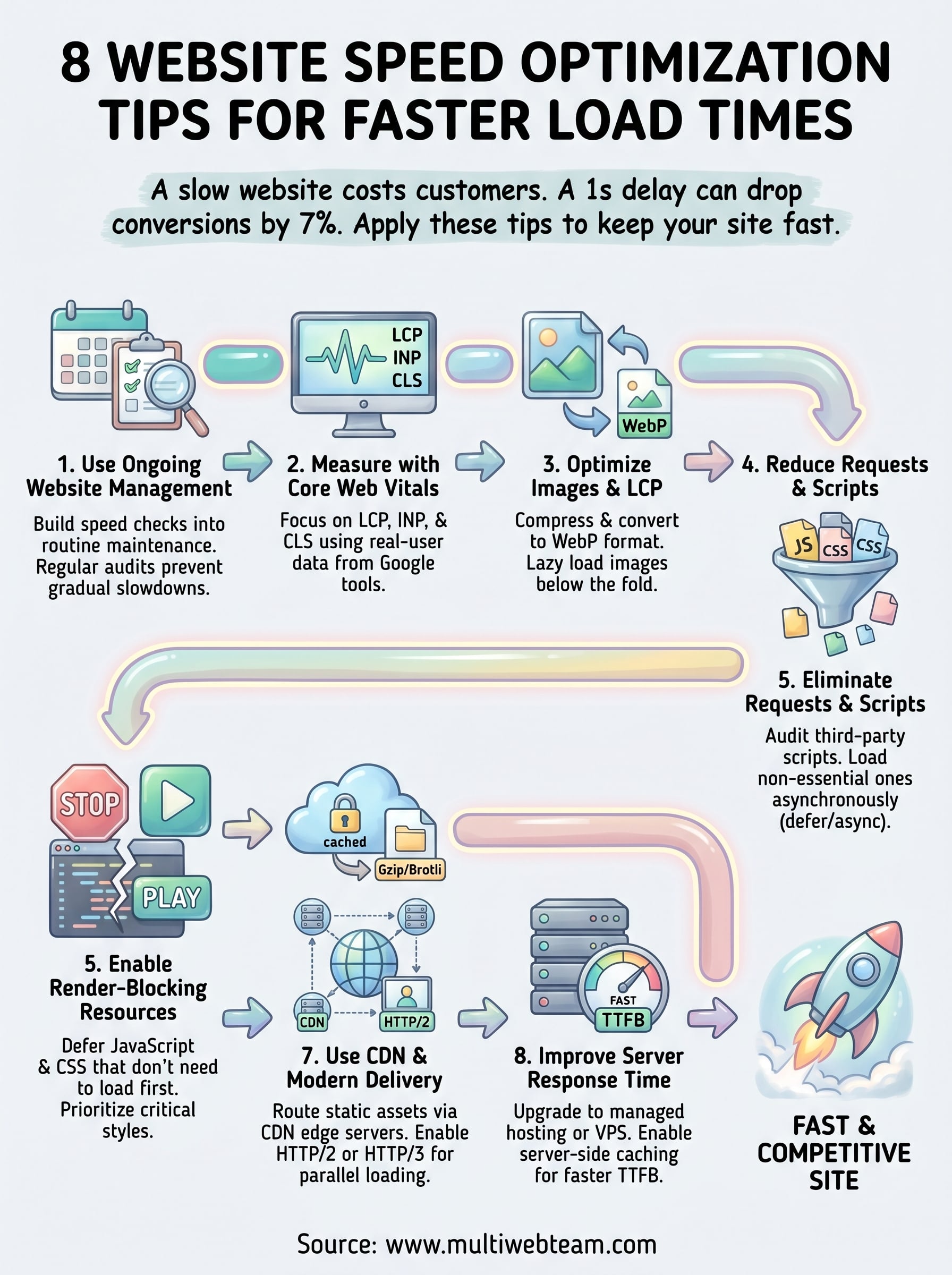
A slow website doesn't just frustrate visitors, it costs you customers. Studies consistently show that even a one-second delay in page load time can drop conversions by 7% or more. For multi-location businesses and franchises, that impact multiplies across every location page on your site. If you've been searching for website speed optimization tips , you're already on the right track to fixing a problem that directly affects your bottom line.
At Multi Web Team, we build and manage websites for multi-location businesses, and site speed is one of the first things we address for every client. We've seen firsthand how a faster site improves local search rankings, keeps visitors engaged, and turns more clicks into paying customers.
This guide covers eight practical techniques you can apply to cut load times and improve performance. Whether you handle your own site or work with a team like ours, these tips will help you identify what's slowing things down and how to fix it.
1. Use ongoing website management to prevent slowdowns
Most website speed optimization tips focus on one-time fixes, but ongoing management is what keeps your site fast over time. Websites slow down gradually as plugins accumulate, themes get updated, and new content gets added without performance checks. For multi-location businesses, this drift happens faster because more pages, more location data, and more media assets all add weight to your site with every change.
Treating speed as a one-time fix means you'll be back solving the same problems six months later.
What to change
Regular website management means building speed checks into your maintenance routine , not treating them as emergencies. Start by auditing your plugins and removing any you no longer use, since inactive plugins still load code in many setups. You should also review any new images or media added in the past 30 days and confirm they were compressed before upload. Setting a recurring review schedule (monthly works well for most businesses) helps you catch problems before visitors notice them.
- Remove unused plugins and scripts quarterly
- Compress and resize images before every upload
- Review theme and plugin updates for performance regressions
- Monitor total page size monthly using your hosting dashboard
How to test it
After each round of updates, run your site through Google PageSpeed Insights to get a baseline score and compare it to your previous result. That comparison tells you whether a recent change introduced a new problem. You should also check your Core Web Vitals report inside Google Search Console , which reflects real-user data collected over the past 28 days and gives you a more accurate picture than any single lab test.
Pull both reports after every significant update cycle, not just when something feels off. Consistent tracking lets you connect specific changes to specific score drops.
Pitfalls to watch for
The most common mistake is delegating updates to someone who is not tracking performance. A content editor might upload a high-resolution video or install a new plugin without realizing the speed impact it creates . Another issue is running updates without testing afterward, which means you only find problems when customers start complaining.
Build in a post-update speed check as a required step in your workflow and assign one person to own that process. Without clear ownership, speed monitoring falls through the gaps every time.
2. Measure what's slow using Core Web Vitals
You can't fix what you haven't measured. Core Web Vitals are Google's standardized performance metrics that capture the real experience visitors have on your pages. Before applying any website speed optimization tips , you need to know which specific signals are failing and by how much, so you're fixing real problems instead of guessing.

Skipping measurement means you might optimize the wrong thing entirely, and still end up with a slow site.
What to change
Core Web Vitals focus on three signals that Google uses to evaluate page experience. Each one targets a different aspect of how your site feels to a real visitor.
- Largest Contentful Paint (LCP): measures how quickly your main content renders, with a target under 2.5 seconds
- Interaction to Next Paint (INP): measures how fast your page responds to user input, with a target under 200 milliseconds
- Cumulative Layout Shift (CLS): measures visual stability as the page loads, with a target score below 0.1
How to test it
Run your pages through Google PageSpeed Insights to pull both lab and field data in one report. Your Google Search Console also includes a Core Web Vitals section showing real-user data grouped by page type, which makes it much easier to spot performance patterns across all your location pages at once.
Pitfalls to watch for
One common mistake is testing only your homepage and stopping there. Every location page needs its own check, because a single underperforming page still harms your local search rankings . Also, lab scores and field scores can diverge significantly, so always treat field data as the more reliable signal when you're deciding what to fix first.
3. Optimize images and your largest page element
Images are typically the heaviest assets on any webpage, and for multi-location businesses running location-specific hero images and photo galleries, the cumulative weight adds up fast. Since Largest Contentful Paint (LCP) almost always points to an image as the culprit, optimizing your images is one of the highest-impact website speed optimization tips you can apply.
Getting your LCP element to load under 2.5 seconds usually starts with fixing a single large image.
What to change
Start by converting images to WebP format
, which delivers significantly smaller file sizes than JPEG or PNG without visible quality loss. Compress every image before uploading it, and set explicit width
and height
attributes in your HTML so the browser reserves space while the image loads. For images below the fold, add lazy loading
so they only load when a visitor scrolls toward them, reducing the initial page weight immediately.
How to test it
Run your page through Google PageSpeed Insights and look for the "Largest Contentful Paint element" callout in the diagnostics. It shows you exactly which element is causing the delay. You can also open Chrome DevTools , go to the Network tab, filter by images, and sort by file size to identify oversized assets in seconds.
Pitfalls to watch for
Many teams compress images inconsistently, applying the process once and then forgetting it for new uploads . Another common mistake is skipping explicit image dimensions, which causes layout shifts that hurt your CLS score even after you've improved load times.
4. Reduce HTTP requests and third-party scripts
Every element your page loads, whether an image, a stylesheet, a font, or a tracking pixel, triggers a separate HTTP request . The more requests your page makes, the longer it takes to fully render. Third-party scripts from analytics platforms, chat widgets, and ad networks are especially costly because your browser has to wait on external servers you don't control before it can finish loading your page.
A page making 80 requests will always struggle more than one making 30, regardless of how fast your server is.
What to change
Start by auditing every third-party script running on your site and ask whether each one is actively delivering value. Remove anything that isn't. For the scripts you keep, load them asynchronously
using the async
or defer
attribute so they don't block page rendering. You should also combine CSS files where possible and replace multiple icon images with a single sprite sheet
to cut request volume without removing functionality.
How to test it
Open Google PageSpeed Insights and look at the "Reduce the impact of third-party code" section under diagnostics. It lists every external script, the domain it loads from, and its blocking time in milliseconds , which makes it straightforward to prioritize what to cut first. Chrome DevTools Network tab also shows you total request count at the bottom of the panel.
Pitfalls to watch for
The most common mistake teams make is adding new tracking scripts without removing old ones, which means request counts grow silently over time. Another issue is assuming that a script from a major vendor is lightweight, since many analytics and marketing tools load additional dependencies that multiply their real page weight well beyond the initial file size.
5. Eliminate render-blocking CSS and JavaScript
When your browser loads a page, it builds the visual layout using HTML. Any CSS or JavaScript file tagged as render-blocking forces the browser to stop and fully load that file before it can display anything on screen. For visitors, this creates a blank or frozen page for several seconds, which directly drags down your LCP and INP scores . Eliminating render-blocking resources is one of the most technically impactful website speed optimization tips you can apply.
Render-blocking scripts are often invisible in day-to-day site management, but they consistently show up as top issues in performance audits.
What to change
Add the defer
attribute to JavaScript files that don't need to run before the page renders. For JavaScript that loads independently without depending on other scripts, use async
instead. On the CSS side, inline only the critical styles
needed to render above-the-fold content, and load the rest using a non-blocking method. Your theme or page builder may be loading full stylesheets unnecessarily, so check what's actually required for the initial view.
How to test it
Open Google PageSpeed Insights and scroll to the "Eliminate render-blocking resources" diagnostic. It lists every file causing a delay along with its estimated savings in milliseconds , so you can prioritize which files to address first.
Pitfalls to watch for
The most common mistake is applying defer
to scripts that other scripts depend on, which breaks functionality
and causes JavaScript errors. Always test your site after making changes to confirm that interactive elements like forms, menus, and location maps still work correctly.
6. Enable caching and compression properly
When a visitor loads your page, their browser downloads every file from scratch unless you've told it to save copies locally. Browser caching stores static assets like images, CSS, and JavaScript on the visitor's device so repeat visits load almost instantly. Combined with server-side compression , which shrinks files before they leave your server entirely, these two techniques cut load times without requiring any changes to your actual content.
Caching and compression are among the most impactful website speed optimization tips because they reduce both bandwidth usage and perceived load time simultaneously.
What to change
Enable Gzip or Brotli compression on your server to reduce the size of HTML, CSS, and JavaScript files before they transfer to the browser. Brotli delivers better compression ratios than Gzip on modern browsers, so prioritize it where your hosting environment supports it. For caching, configure cache-control headers with expiration times that match how often each file type changes: one year for static assets like images and fonts, and shorter durations for files you update more frequently.
How to test it
Run your page through Google PageSpeed Insights and look for the "Serve static assets with an efficient cache policy" and "Enable text compression" diagnostics. Both reports identify exactly which files are missing proper headers and show the estimated savings in kilobytes , so you know where to focus first.
Pitfalls to watch for
The most common mistake is setting long cache durations on files you update regularly, which causes visitors to see outdated CSS or JavaScript. Always pair long expiration times with cache-busting techniques like appending a version string to file URLs so browsers automatically fetch the updated version on your next deployment.
7. Use a CDN and modern delivery settings
A Content Delivery Network (CDN) routes your website's static assets through servers located closer to each visitor, reducing the physical distance data has to travel. For multi-location businesses, this is one of the most practical website speed optimization tips you can implement, because your visitors are spread across different cities and regions, and a CDN serves them all faster without any changes to your core site.

The closer your server is to your visitor, the faster your page loads, and a CDN closes that gap automatically.
What to change
Enable a CDN for all static assets including images, CSS files, and JavaScript , and configure it to serve content from edge locations near your target cities. Alongside CDN setup, switch your site to use HTTP/2 or HTTP/3 , which allow multiple files to load in parallel over a single connection instead of queuing them one at a time. Most modern hosting providers support both protocols through their control panel settings.
How to test it
Run your pages through Google PageSpeed Insights and review the network response diagnostics for signs that assets are loading from distant servers. You can also open Chrome DevTools , go to the Network tab, and check the protocol column to confirm your site is delivering assets over HTTP/2 or HTTP/3 rather than the older HTTP/1.1.
Pitfalls to watch for
A common mistake is enabling a CDN but forgetting to purge cached files after deploying updates, which means visitors receive outdated CSS or JavaScript. Also confirm that your CDN covers your actual visitor locations and not just a handful of data centers concentrated in one region.
8. Improve server response time and hosting setup
Your server response time is the foundation everything else builds on. Before a browser can load a single image or stylesheet, it has to receive the initial HTML from your server, and if that Time to First Byte (TTFB) is too slow, every other website speed optimization tip you apply will be limited by that ceiling. Google recommends keeping TTFB under 800 milliseconds, and most well-configured hosting setups can hit that target without difficulty.
Slow server response time cancels out nearly every other optimization you've made, because nothing loads until that first byte arrives.
What to change
Start by reviewing your hosting plan and server location . Shared hosting environments are often the single biggest source of slow TTFB because your site competes for resources with hundreds of other sites on the same machine. Upgrading to managed cloud hosting or a VPS gives your site dedicated resources and faster response times. Also enable server-side caching at the application level so your server returns pre-built pages instead of querying the database on every single request.
How to test it
Use Google PageSpeed Insights and look for the "Reduce initial server response time" diagnostic. It shows your current TTFB and flags it when it exceeds Google's threshold.
After any hosting change, run the test again and compare results directly. One measurement alone tells you your current state, but two measurements tell you whether your change actually worked.
Pitfalls to watch for
The most common mistake is upgrading your hosting plan without moving your server location closer to where your customers actually are. A faster server in the wrong region still produces a slow TTFB for local visitors, so always match your data center location to your primary audience geography.
Next steps
These eight website speed optimization tips give you a clear path from slow and frustrating to fast and competitive. Start with measurement using Core Web Vitals so you know exactly which problems to fix first, then work through images, scripts, caching, and your hosting setup in order of impact. Each change compounds on the last.
Applying these fixes once is a good start, but keeping your site fast requires consistent maintenance over time . Plugins, content updates, and new location pages all introduce performance regressions if nobody is watching for them. That is exactly the kind of ongoing work that Multi Web Team handles for multi-location businesses and franchises. If you want a team that keeps your site fast, updated, and optimized across every location without you having to manage it yourself, reach out to see how the service works.