
How to Manage a WordPress Website: A Beginner's Guide
You launched your WordPress site, and now what? Most business owners realize too late that the design was the easy part. Learning how to manage a WordPress website means staying on top of plugin updates, backups, security patches, and content changes, week after week, often while running the actual business those location pages are supposed to support.
If you're a beginner, this guide walks you through the exact tasks that keep a WordPress site running smoothly: updating themes and plugins without breaking your layout, setting up automated backups, monitoring uptime, and making routine content edits like new promotions or hours changes. You'll also get a realistic sense of how much time this takes each month and which tasks you can safely automate versus what needs a human eye.
We work with multi-location businesses and franchises every day, and we've seen what happens when a single owner tries to manage five, ten, or fifty location pages alone. This article covers the core maintenance checklist , common mistakes that lead to downtime or security breaches, and a clear point where outsourcing website management starts making more financial sense than doing it yourself.
What ongoing WordPress management really involves
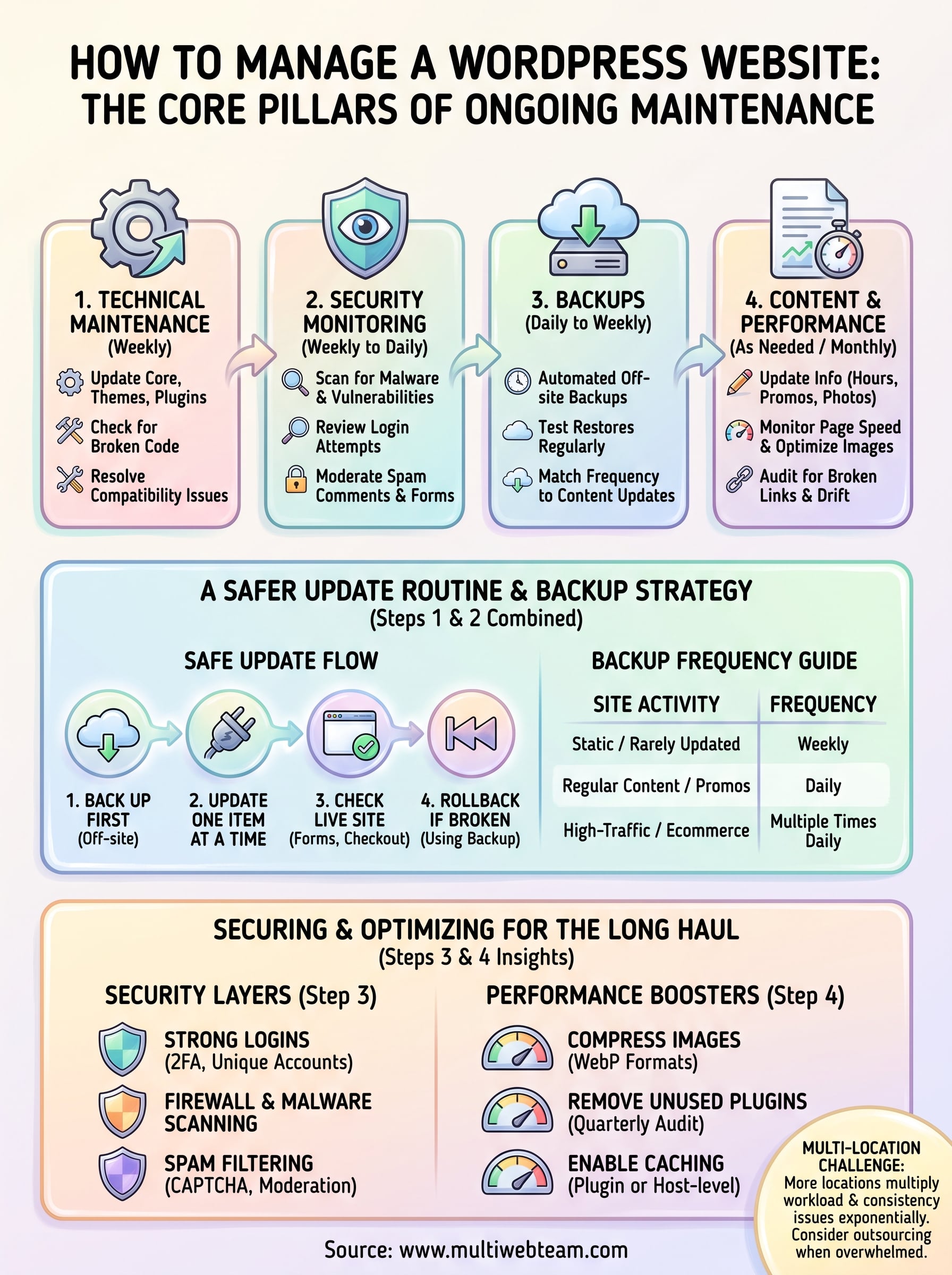
Managing a WordPress site is not a one-time setup task, it's a recurring job with its own calendar. Every week, WordPress core, your theme, and dozens of plugins release updates that patch security holes or fix compatibility issues. Skip a few cycles and you're running outdated code that hackers actively scan for. Ongoing management covers four distinct areas: technical maintenance, security monitoring, backups, and content updates, and each one needs attention on a different schedule.
The four pillars you need to cover
Breaking the work into categories makes it easier to see what actually needs doing and how often.
| Task category | Frequency | Example tasks |
|---|---|---|
| Technical maintenance | Weekly | Update plugins, themes, WordPress core, check for broken code |
| Security monitoring | Weekly to daily | Scan for malware, review login attempts, moderate spam comments |
| Backups | Daily to weekly | Automated backups, test restores, store copies off-site |
| Content updates | As needed | New hours, promotions, menu changes, photos, blog posts |
A WordPress site left unmanaged for even one month is measurably more likely to break, get hacked, or lose search rankings.
How much time this actually takes
For a single, simple site, budget two to three hours a month for maintenance alone. That figure doesn't include content updates, which for an active multi-location business can easily double it. If you're running an ecommerce store or a site with custom functionality, plan for more, since plugin conflicts and compatibility issues show up more often as complexity grows. Most beginners underestimate this until they hit their first broken update or a plugin conflict that takes down a checkout page during a busy weekend.
Why multi-location sites multiply the workload
Growing chains and franchises rarely stop at one location page. Each additional location adds its own hours, contact details, promotions, staff photos, and local SEO metadata, all of which need periodic review. What takes twenty minutes for one location becomes several hours across ten, and that math doesn't scale well when it's layered on top of an owner's other responsibilities. Franchise groups in particular run into a second problem: consistency. When five different people update five different location pages, formatting drifts, broken links pile up, and brand voice gets diluted.
What a beginner needs to track from day one
If you're managing your first WordPress site, keep a simple running list so nothing slips through the cracks:
- Current versions of WordPress core, your theme, and every active plugin
- Last backup date and where that backup is stored
- Login credentials management, including who has admin access
- A content calendar for seasonal promotions or hour changes
- Uptime status, ideally checked automatically rather than manually
The WordPress.org codex covers the technical basics of backups and updates in more depth, and it's worth bookmarking as a reference even after you've built your own routine. Once you have this list running, the next sections walk through each pillar step by step, starting with the update process that trips up most beginners first.
Step 1. Update WordPress core, themes, and plugins
Updating WordPress core along with your theme and plugins is the single most important habit in keeping a site secure. Every update patches something, whether it's a security vulnerability, a compatibility fix, or a bug that's been silently breaking a form. Ignore updates for a few months and you're running software with known, publicly documented weaknesses that automated bots actively scan for.
Why skipping updates is riskier than breaking something
Business owners often delay updates because they're afraid an update will break the layout, and that fear is valid. Plugin conflicts do happen. But an outdated site is a bigger risk than a temporarily broken page, since most hacks target sites running old plugin versions with published exploits. The fix isn't avoidance, it's a safer process.
Outdated plugins are the number one entry point hackers use to compromise small business WordPress sites.
A safer update routine
Follow this sequence every time you update, rather than clicking every "update available" notice at once:
- Back up the site first , before touching anything (see Step 2).
- Update one plugin or theme at a time, not all at once.
- Check the live site immediately after each update, especially forms, checkout pages, and location listings.
- If something breaks, roll back that single item using your backup rather than guessing which of ten updates caused it.
- Log the update date and version number somewhere you can reference later.
If you have the resources, test major updates on a staging copy of the site before pushing them live. Most reputable hosts offer one-click staging environments for exactly this reason, and the WordPress.org guide to updating WordPress walks through the manual process if your host doesn't.
For multi-location sites running the same theme and plugin stack across dozens of pages, this step alone can eat an entire afternoon monthly. That's the workload a dedicated management plan is built to absorb.
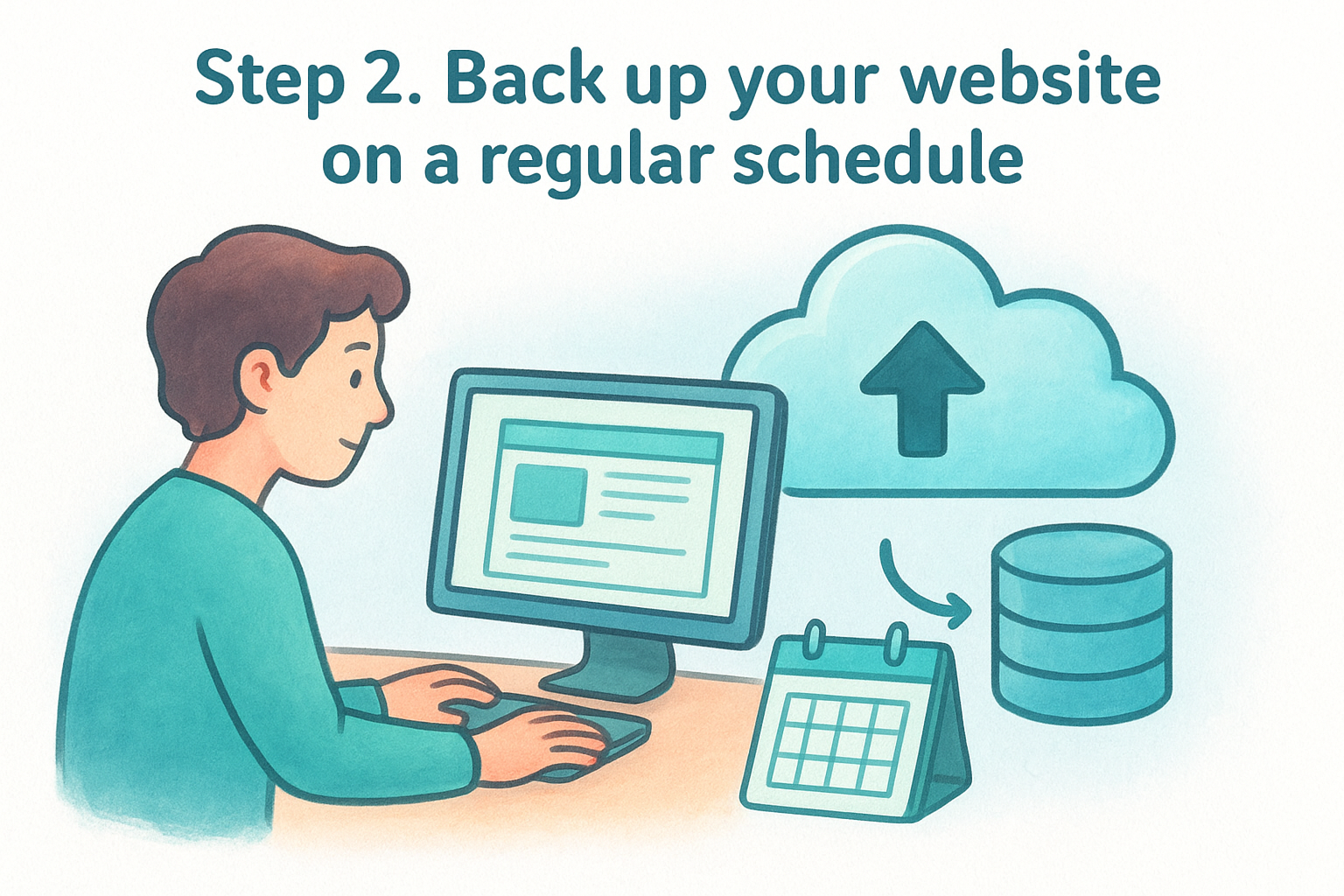
Step 2. Back up your website on a regular schedule
A backup schedule is your safety net for every update, every plugin conflict, and every hack attempt that slips through. Without one, a single bad update or compromised login can wipe out months of content changes with no way back. Think of backups as insurance you hope you never use but absolutely cannot skip, especially once you're running location pages that took real time to build out.
Why frequency matters more than tools
Backup frequency should match how often your site changes, not some arbitrary default. A blog that posts weekly needs less frequent backups than a multi-location site where daily content updates to hours, promotions, and photos are the norm. Match the schedule to your update pace:
| Site activity level | Recommended backup frequency |
|---|---|
| Static, rarely updated | Weekly |
| Regular content or promo updates | Daily |
| High-traffic ecommerce or bookings | Multiple times daily |
A backup you haven't tested is just a file you're hoping works, not an actual safety net.
Where to store your backups
Storing backups only on your hosting server defeats the purpose, since a server-wide issue takes both the site and the backup down together. Follow the same rule professionals use:
- Keep at least one copy off-site, on cloud storage separate from your host
- Automate the process with a backup plugin or your host's built-in tool
- Retain several recent versions, not just the latest one, in case corruption goes unnoticed for a few days
- Label each backup with a date so rollbacks are fast during an emergency
Testing your restores
Schedule a restore test every few months on a staging copy, not your live site. Restoring reveals gaps you won't catch just by confirming a backup file exists, like missing database tables or broken media links. For multi-location sites, this single habit prevents the worst-case scenario: discovering your backup was incomplete only after something has already gone wrong.
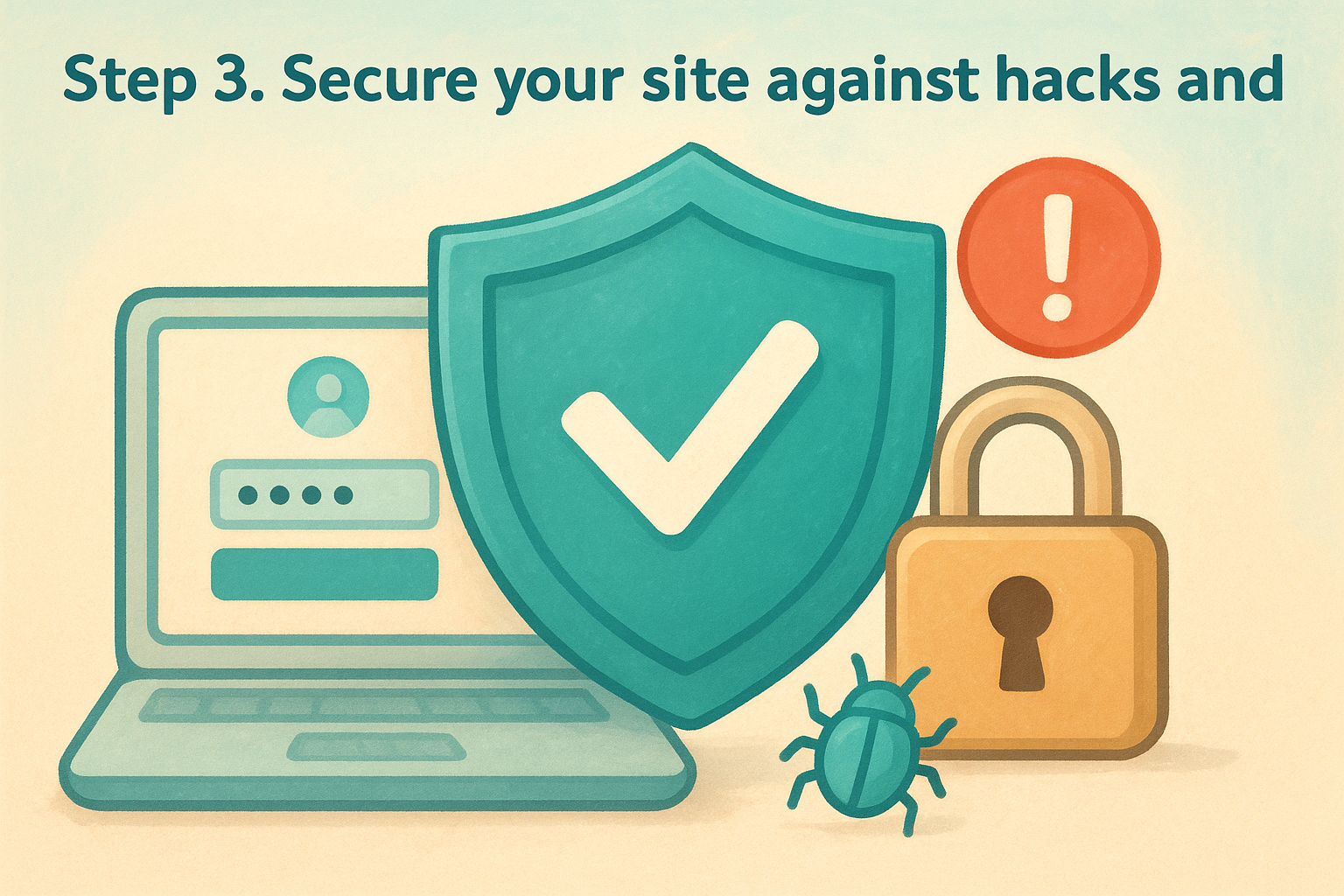
Step 3. Secure your site against hacks and spam
Every WordPress site is a target, regardless of size, because bots scan the entire web looking for known vulnerabilities rather than picking on you specifically. Website security isn't a one-time plugin install, it's a layered routine that combines firewalls, login protections, and spam filtering. Skip this step and you're leaving the door open for the same automated attacks that take down thousands of small business sites every day.
Lock down logins first
Weak or reused passwords are the easiest way into a WordPress site, and admin accounts are the first thing attackers try. Set up two-factor authentication on every admin account, limit login attempts with a security plugin, and rename your login URL away from the default wp-admin path. If multiple people manage location pages, give each person their own account instead of sharing one login, so you can track who changed what and revoke access the moment someone leaves.
Most WordPress hacks succeed because of weak logins, not sophisticated exploits.
Add a firewall and malware scanning
A web application firewall blocks malicious traffic before it ever reaches your site, and a scanning tool flags malware infections before they spread across every location page. Run a scan weekly at minimum, and immediately after any plugin update that touches file permissions.
Filter out comment and form spam
Spam comments and fake form submissions clutter your inbox and can quietly hurt your search rankings if left unmoderated. A few habits keep this under control:
- Install a spam filter plugin on every comment and contact form
- Require CAPTCHA on public-facing forms, especially location contact pages
- Review flagged spam weekly rather than letting it pile up
- Delete fake accounts before they attempt to log in
For a business running ten or more location pages, each with its own contact form, spam filtering alone can generate dozens of false submissions a week if left unmanaged.
Step 4. Manage content, speed, and performance
Keeping content fresh matters just as much as patching security holes, since a site with outdated hours or last year's promotions tells visitors you're not paying attention. Content management for a multi-location business means regularly updating hours, menus, pricing, staff bios, and photos across every location page, not just the homepage. Speed and performance sit right alongside content, because a slow-loading page loses visitors before they ever read what you updated.
Keep content current across every location
Outdated information costs you customers directly, especially when someone shows up to a location that changed its hours weeks ago and nobody updated the site. Build a simple rotation:
- Review hours, holiday closures, and contact details monthly
- Swap in seasonal promotions and update pricing as it changes
- Refresh photos at least twice a year so the site doesn't look stale
- Audit each location page quarterly for broken links or old staff names
A site that looks outdated makes customers question whether the business itself is still reliable.
Monitor page speed regularly
Speed directly affects both conversions and search rankings, and it degrades quietly as you add plugins, images, and tracking scripts over time. Run a speed check monthly using a tool like Google's PageSpeed Insights, and compress images before uploading rather than after the page already feels slow.
| Performance factor | Action |
|---|---|
| Large images | Compress before upload, use modern formats like WebP |
| Too many plugins | Remove unused ones, audit quarterly |
| No caching | Install a caching plugin or enable host-level caching |
| Slow hosting | Upgrade to hosting built for WordPress traffic |
Watch for performance drift
Performance issues rarely appear overnight, they build up as plugins accumulate and content grows across dozens of location pages. Track load times over time instead of checking once and forgetting about it, since a site that loaded fast at launch can slow down significantly a year later without anyone noticing until traffic drops.
Keeping your WordPress site running smoothly
Running a WordPress site well comes down to consistency, not complexity. Updates, backups, security checks, and content edits each follow their own rhythm, and once you build that rhythm into a routine, the work stops feeling overwhelming. Skip a step for a few months, though, and small gaps turn into broken pages, security holes, or outdated hours that cost you actual customers.
Multiplying this across five, ten, or fifty location pages is where most owners hit their limit. The checklist that takes two hours for one site takes an entire week across a franchise, and that's before accounting for local SEO or brand consistency. At some point, outsourcing website management stops being a luxury and starts being the cheaper option compared to the hours you're losing.
If you'd rather hand this workload to a team that manages multi-location sites daily, see how Multi Web Team handles updates, backups, and SEO so you don't have to.